
Login and password management
We Are Distributed offers two ways to access your account: password login (the default method) and login codes (an alternative method for quick access).
Login with password
This is the standard way to access your account:
Enter your email and password
Click Login
If you're logging in for the first time, you may see your login code displayed—save this for future use.
Reset your password
If you've forgotten your password:
On the login page, click Forgot Password?
Enter your email address and click Reset Password
Check your email for a reset link (expires in 1 hour)
Click the link and enter your new password (must be at least 8 characters)
Confirm your new password and submit
You'll be redirected to the login page to sign in with your new password.
Password reset links expire after 1 hour. If your link has expired, request a new one.
Change your password
You can update your password anytime from your account settings:
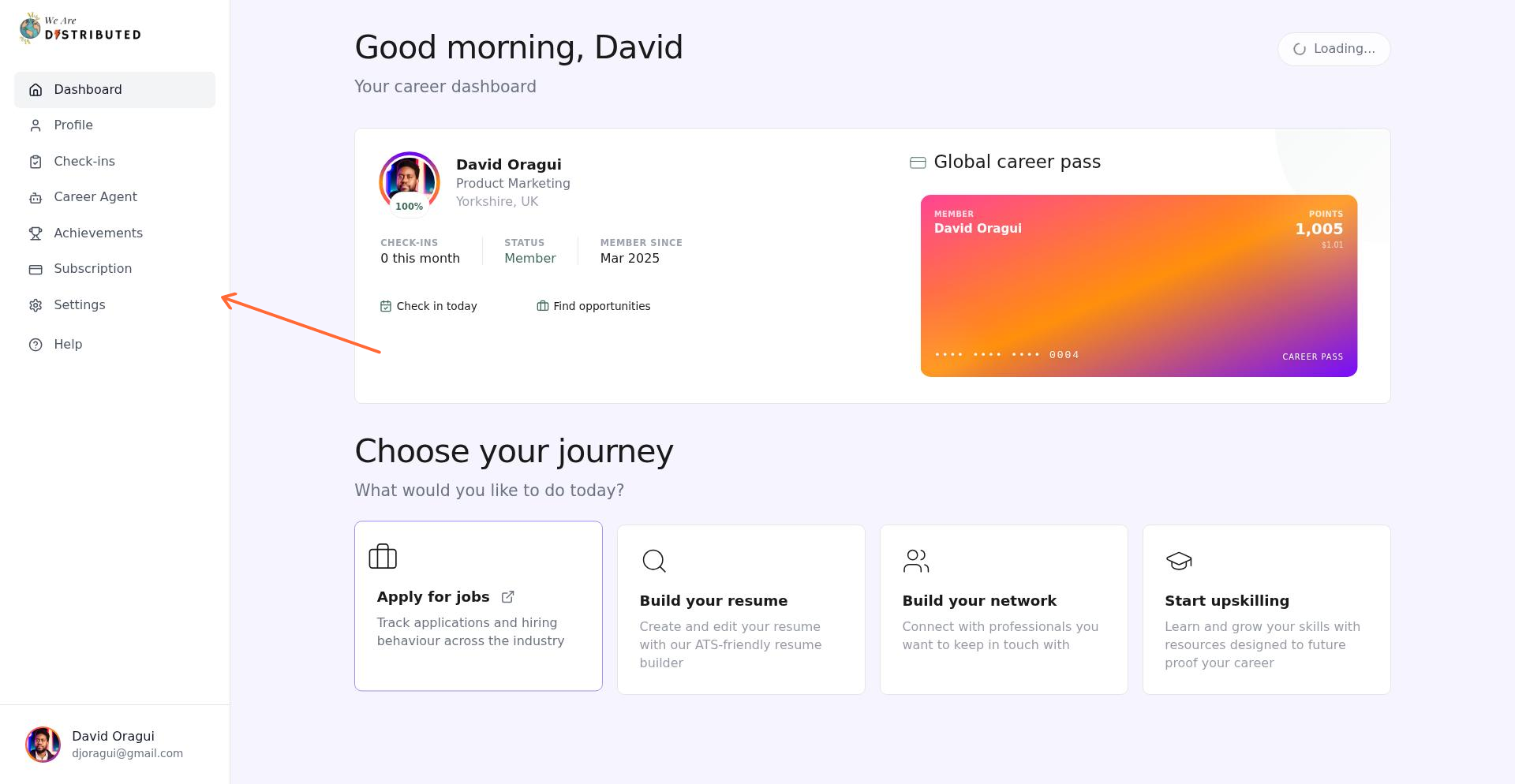
Click Settings in the left sidebar
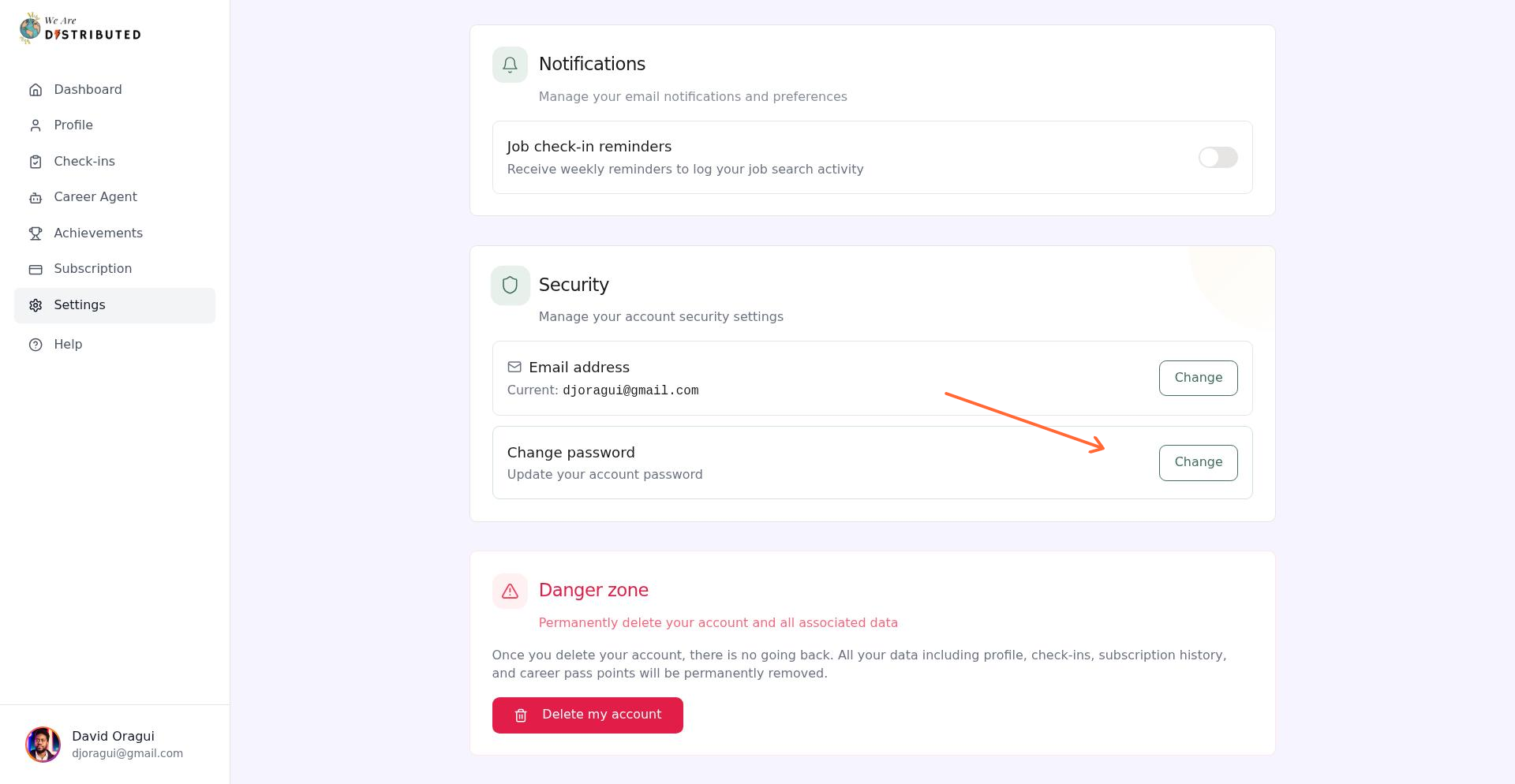
In the Security section, click Change next to "Change password"
In the modal, enter your current password, then your new password (at least 8 characters), and confirm it
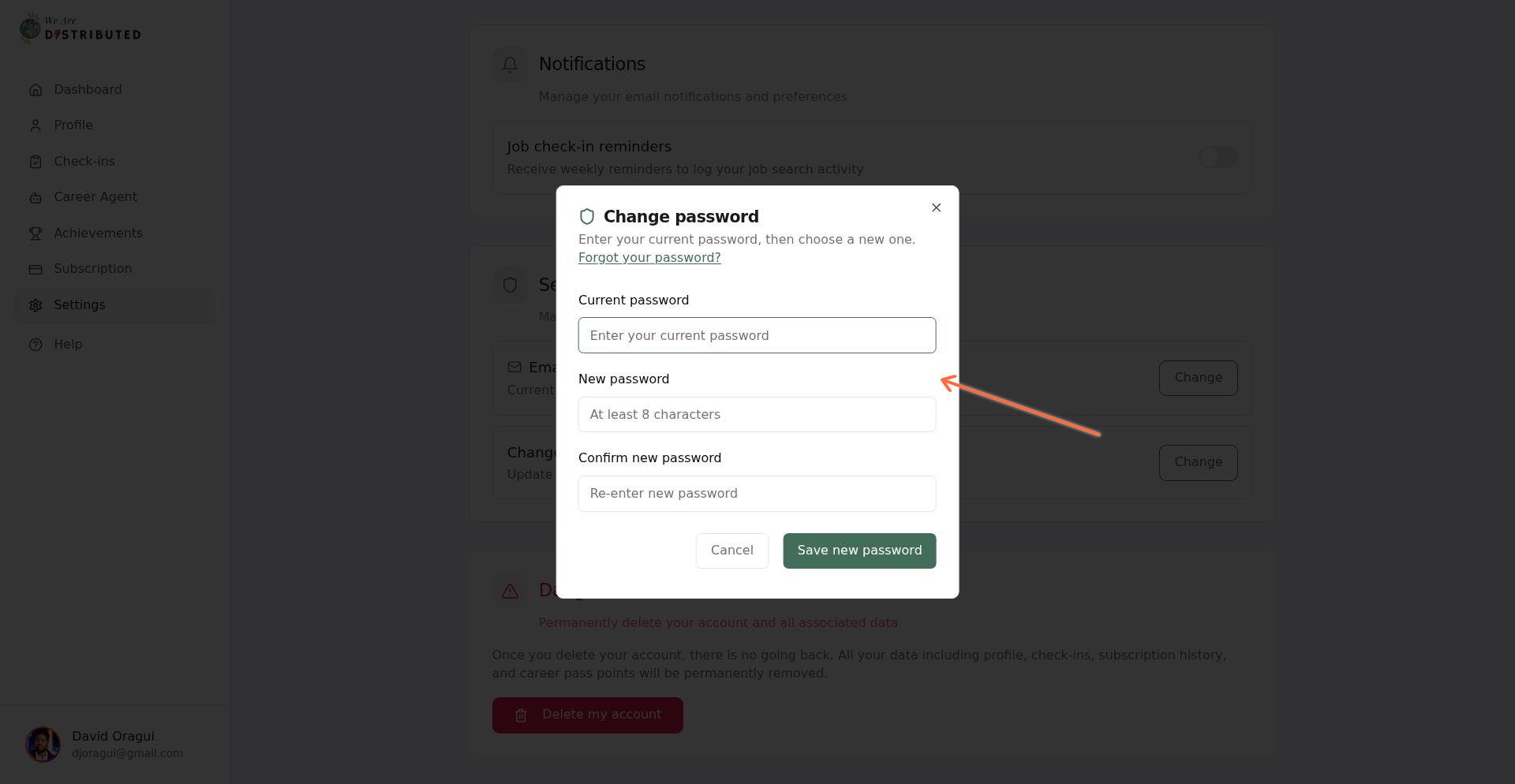
Click Save new password
You'll see a confirmation message and the modal will close. Your new password is active immediately.
Password change security
When you change your password, the system verifies your identity and applies security protections:
Identity verification You must enter your current password correctly to proceed. This prevents unauthorized changes if someone gains temporary access to your logged-in session. If you enter the wrong current password, you'll see an error message and the change will be blocked.
Troubleshooting password changes
If you signed in via a connected app or magic link in the past and haven't set a password yet, you'll see an error: "Current password is incorrect. If you signed in via a connected app or magic link, use 'Forgot password' to set a password first."
To fix this, click the Forgot your password? link in the change password modal. This will send you a password reset email, allowing you to set your first password. After that, you can change it normally from Settings.
Other common issues
"Passwords do not match" — Your new password and confirmation don't match; re-enter them carefully
"New password must be at least 8 characters" — Choose a longer password that meets the minimum requirement
"Current password is incorrect" — Double-check your current password for typos, or use the reset flow if you've forgotten it
Login with login code
Login codes are 26-character alphanumeric codes that provide quick access without typing your password:
Click Login with code instead
Enter your email and login code
Click Login with Code
You must log in with your password at least once before you can use a login code. Your code is generated on your first password login and shown once—save it securely.
Reset your login code
If you've lost your login code, you can request a new one:
On the login with code page, click Forgot login code?
Enter your email and click Send reset link
Check your email for a magic link from [email protected] (expires in 30 minutes)
Click the link to view your new login code
Copy or download your code, acknowledge you've saved it, then click Continue to Login
When you reset your login code, your old code is immediately invalidated. Only your newest code will work.
Login troubleshooting
If you're having trouble logging in:
"Invalid email or password/login code" — Double-check your credentials for typos
"Too many login attempts" — Wait a few minutes before trying again (rate limited to 5 attempts per minute)
"Login code not set" — You need to log in with your password first to generate a login code
"Invalid or expired token" — Your reset link has expired; request a new one
Save your login code in a password manager or secure note app for easy access.