
Receive job summaries by SMS
The Find jobs + SMS alert workflow automatically searches for jobs matching your profile and sends you a text message with the top matches. This keeps you updated on new opportunities without needing to check the dashboard.
Before you begin: You need a Plus membership or higher to use automated workflows. You'll also need to add your phone number to your profile to receive SMS notifications.
Adding your phone number
To receive SMS job summaries, add your phone number to your profile:
Go to your Profile page at
/profileFind the "Phone number" field
Enter your mobile number with country code (e.g., +1 for US, +44 for UK)
Save your changes
Your phone number is used for SMS workflow notifications and future WhatsApp alerts. If you skip this step, the workflow will still run and track jobs—you just won't receive the SMS summary.
Setting up the SMS job summary workflow
To create an automated job search with SMS notifications:
Navigate to Career Agent by clicking the bot icon in your dashboard sidebar
In the Career Agent sidebar, click the timer icon to open Workflows
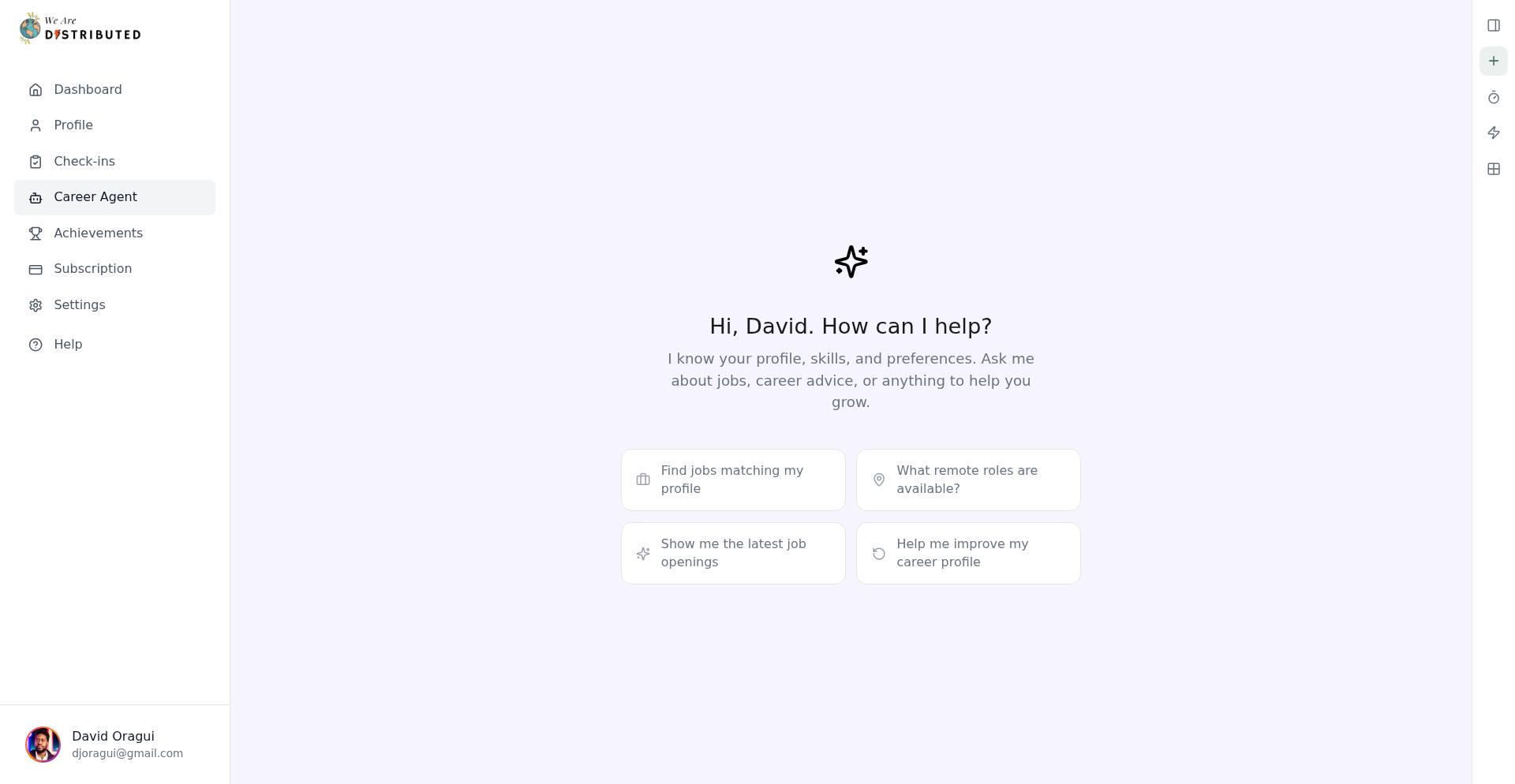
Click the "Find jobs + SMS alert" button
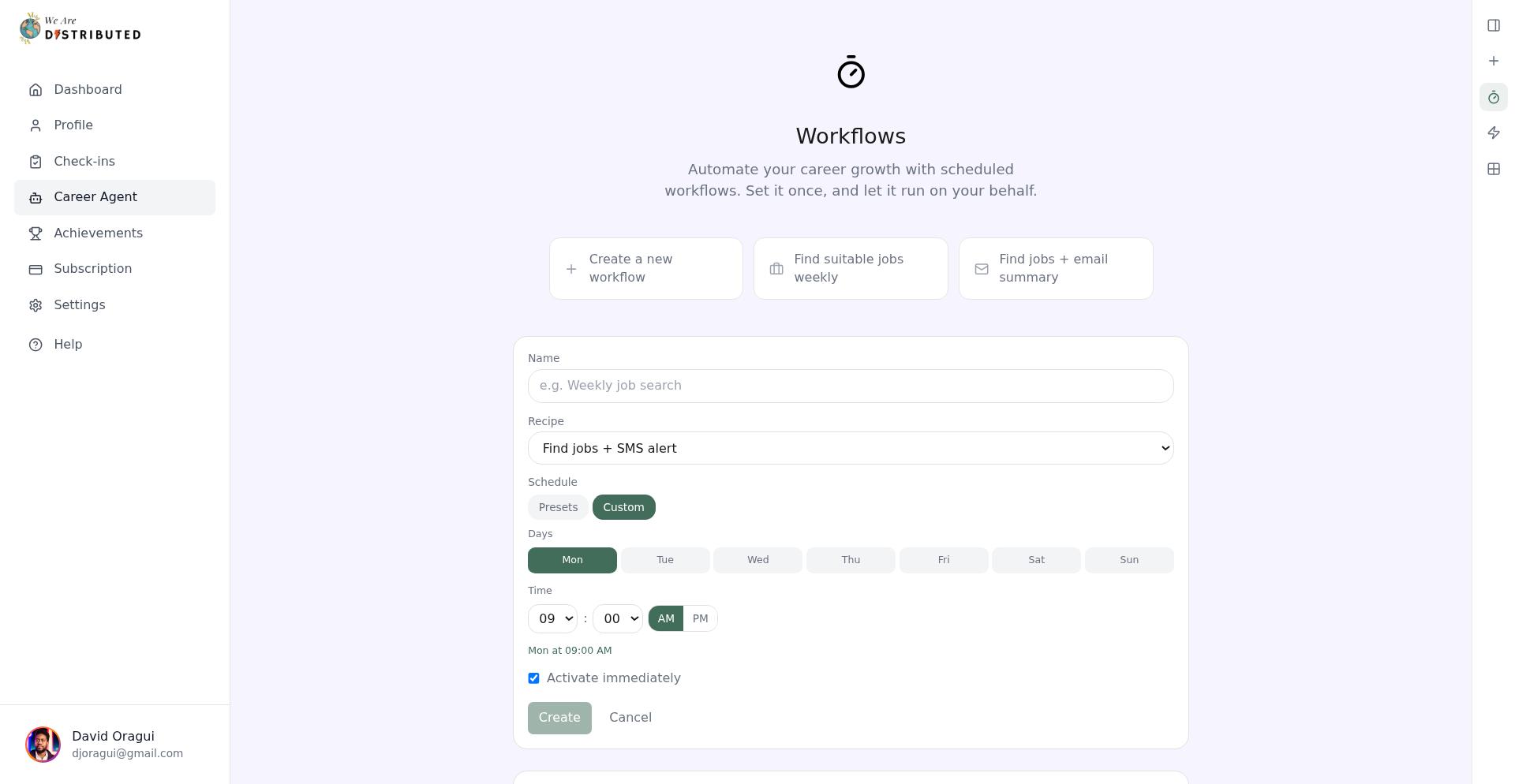
In the creation form, give your workflow a name (e.g., "Daily job alerts")
Confirm "Find jobs + SMS alert" is selected in the Recipe dropdown
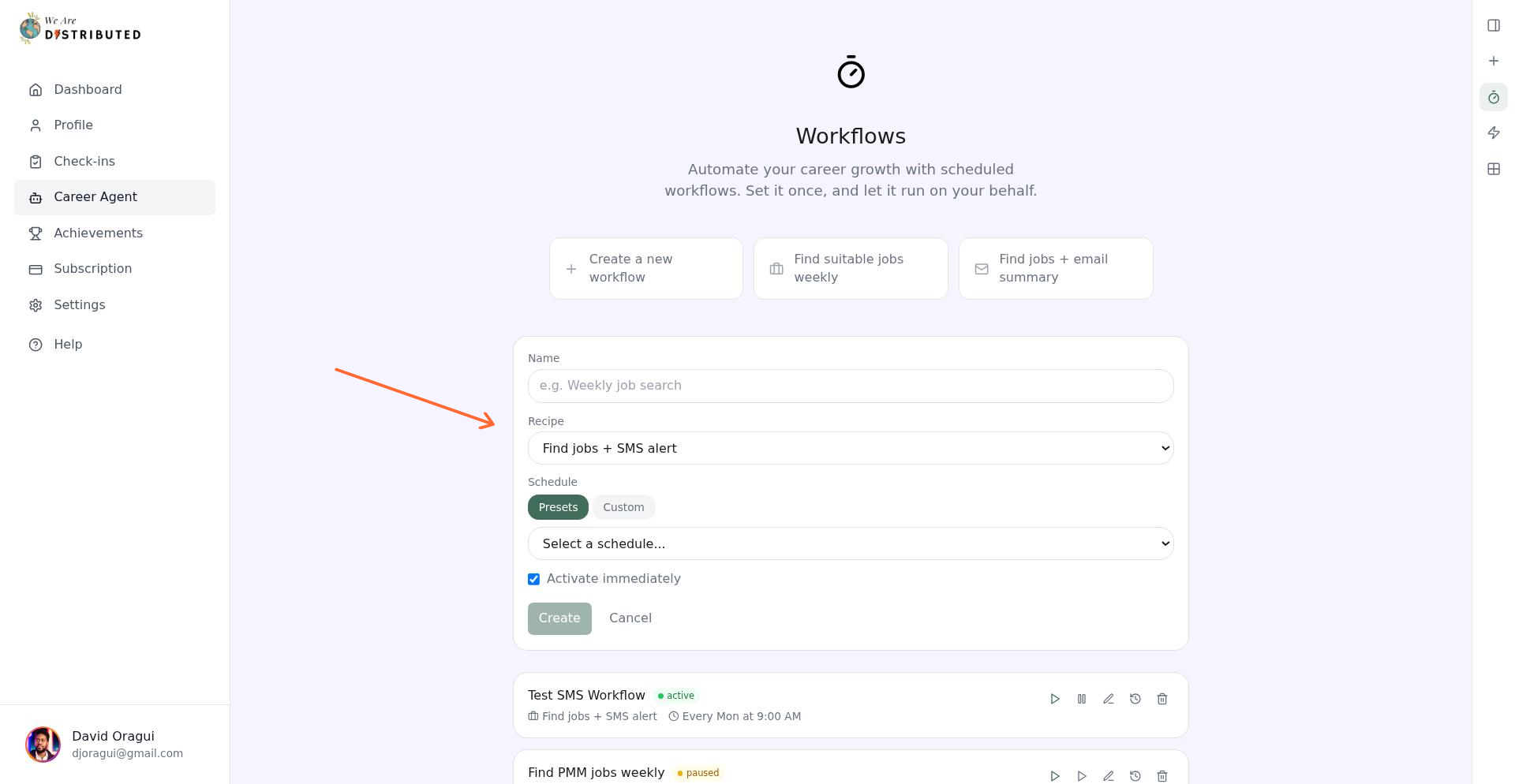
Choose your schedule:
Presets: Select quick options like Daily, Weekdays, or Weekly
Custom: Pick specific days and set your preferred time
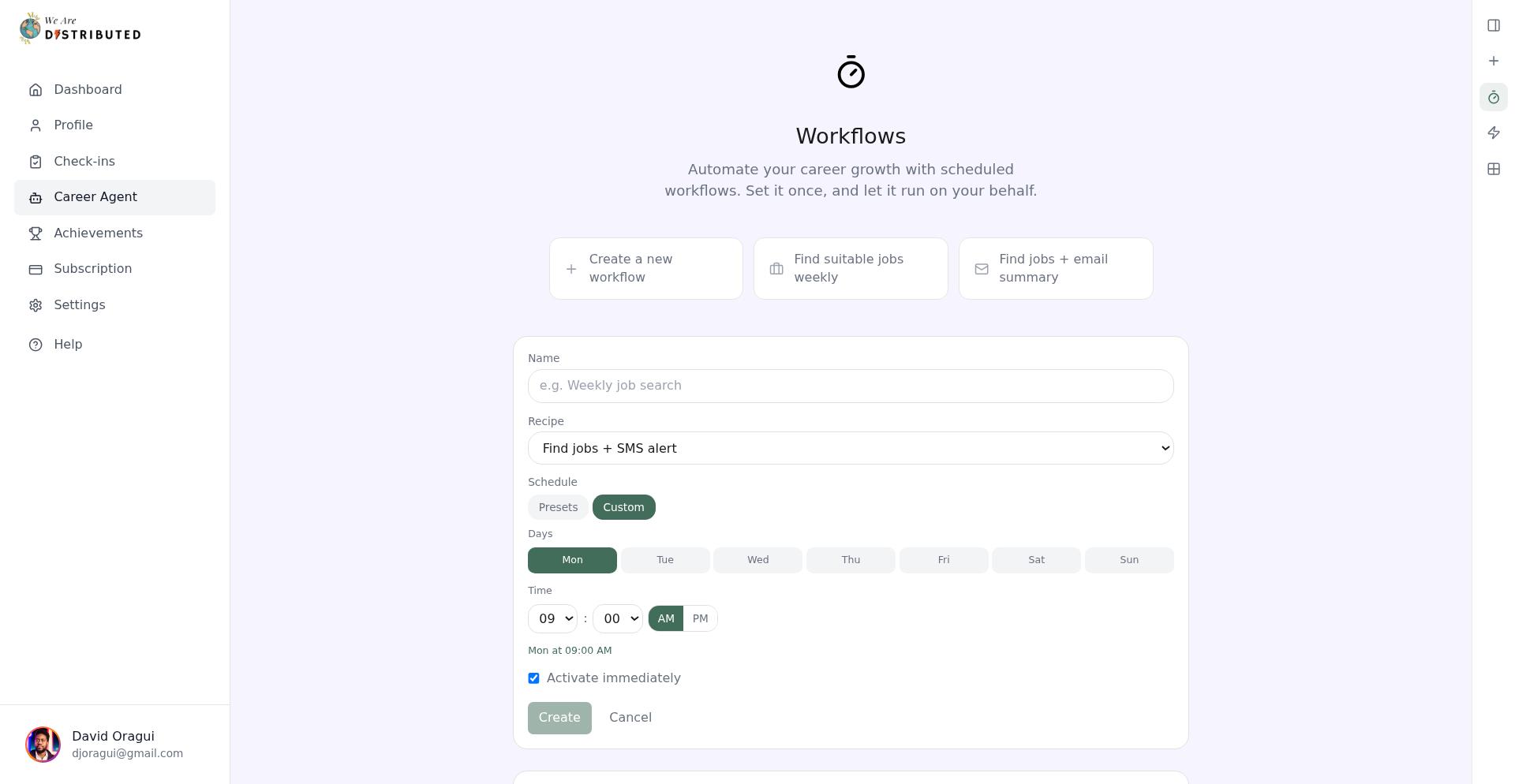
Toggle "Activate immediately" to start the workflow right away
Click "Create"
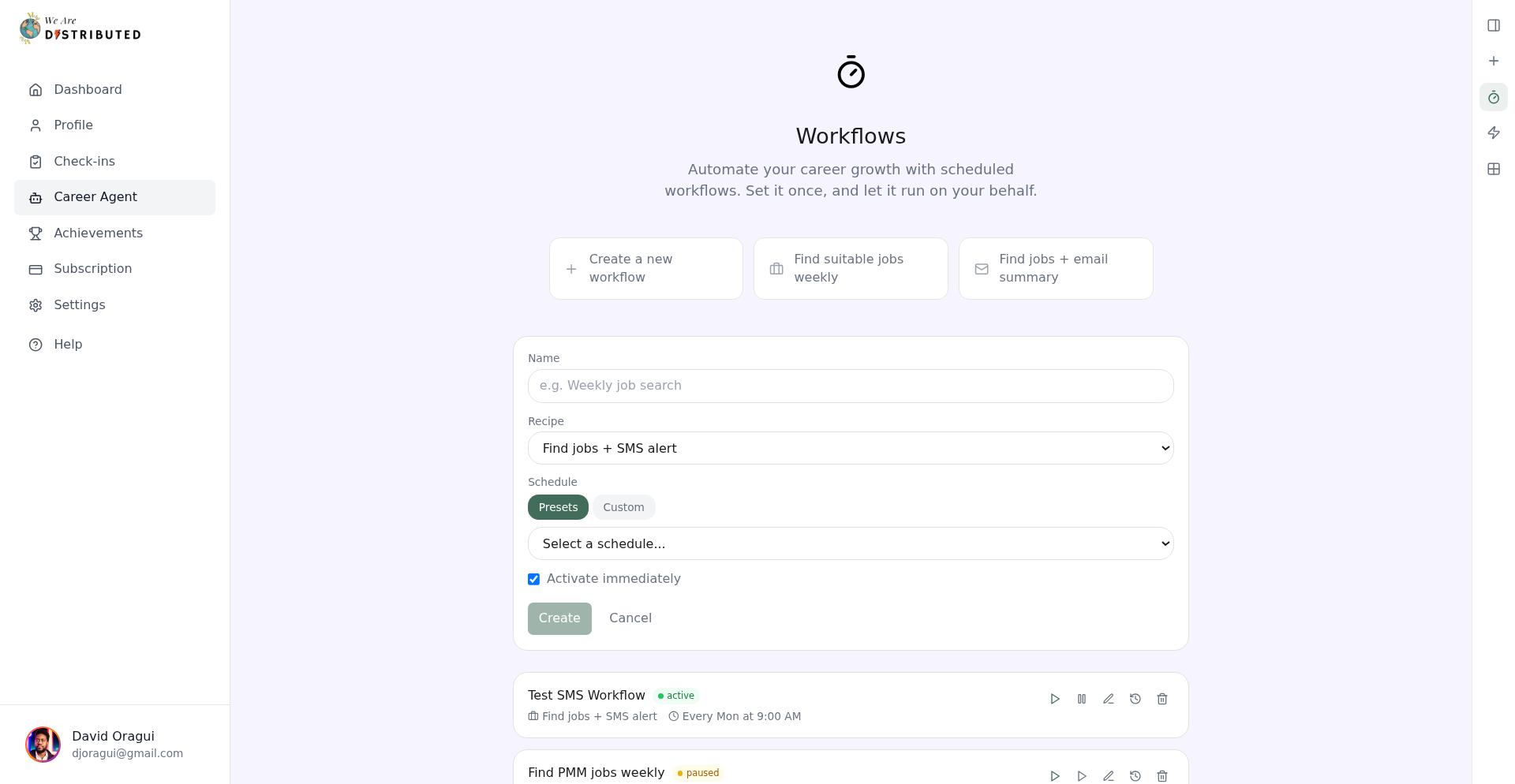
Your workflow will now run on the schedule you set, searching for jobs and sending SMS summaries when matches are found.
How the automated search works
Each time your workflow runs, Career Agent:
Analyzes your profile, skills, experience level, and job title preferences
Searches across all your hiring regions for relevant opportunities
Identifies up to 10 strong matches based on your background
Automatically tracks promising jobs to your Job Tracker
Sends an SMS listing the tracked positions (if your phone number is saved)
You'll only receive an SMS if the workflow finds new matches. If no new jobs match your criteria, the workflow completes silently.
Understanding your SMS summary
When the workflow finds matching jobs, you'll receive a text message with showing how many jobs were found and added to the tracker.
To view full details, open your Job Tracker or check the workflow summary in Career Agent's chat history.
Managing your SMS workflow
Once created, your workflow appears in the Workflows list with status indicators and controls:
Run now: Trigger an immediate job search and SMS summary
Pause/Resume: Stop or restart scheduled runs
Edit: Change the schedule or workflow name
View History: See timestamps and results from past runs
Delete: Remove the workflow entirely
Workflows run on UTC time. If you're in a different timezone, adjust your schedule to match your local hours when you want to receive SMS alerts.
Troubleshooting
Workflow runs but no SMS arrives:
Check that your phone number is saved in your profile with the correct country code
Verify the workflow found new jobs (check the run history for "tracked 0" vs "tracked 3"—you only get an SMS if matches were found)
Getting too many alerts:
Reduce your schedule frequency (e.g., switch from Daily to Weekly)
Pause the workflow temporarily while you refine your profile preferences
Not finding relevant jobs:
Update your job title and skills in your profile to improve matching