
Using Career Agent to automate your job search
AI Career Agent (labeled Career Agent in the sidebar) is your AI assistant that knows your profile, skills, and preferences. It helps you find jobs, track applications, and get career advice—all through a conversational chat interface.
Before you begin: AI Career Agent chat requires a Lite membership or higher. Automated workflows require a Plus membership or above.
What Career Agent does
Career Agent combines conversational AI with your career dashboard tools. You can:
Ask for job recommendations matching your profile
Automatically track promising opportunities
Set up recurring job searches that run on a schedule
Access your Job Tracker, Resume Builder, and Career CRM in one place
Organize career conversations into projects
Accessing Career Agent
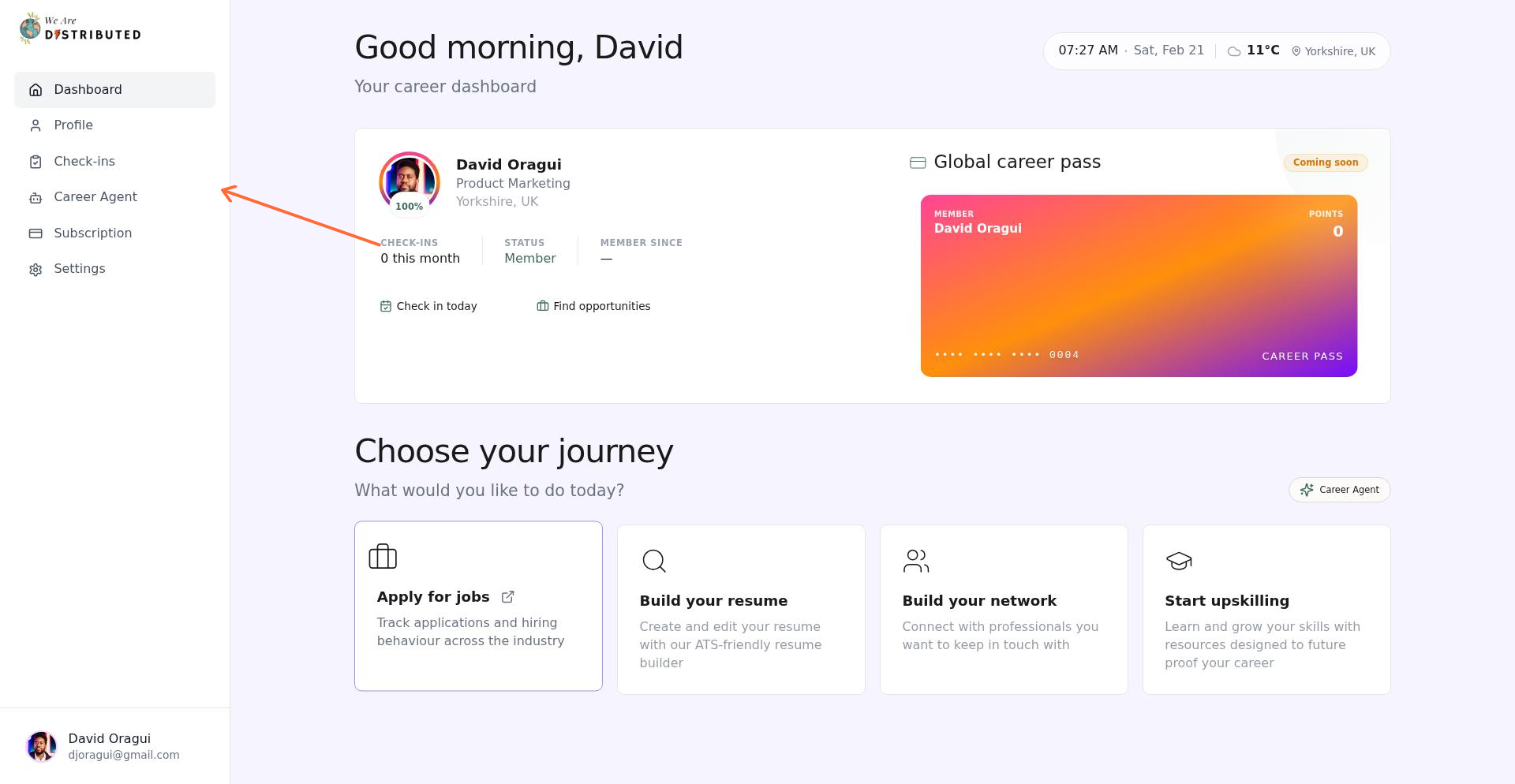
From your dashboard, click the bot icon labeled "Career Agent" in the left sidebar. This opens the Career Agent interface at /agent.
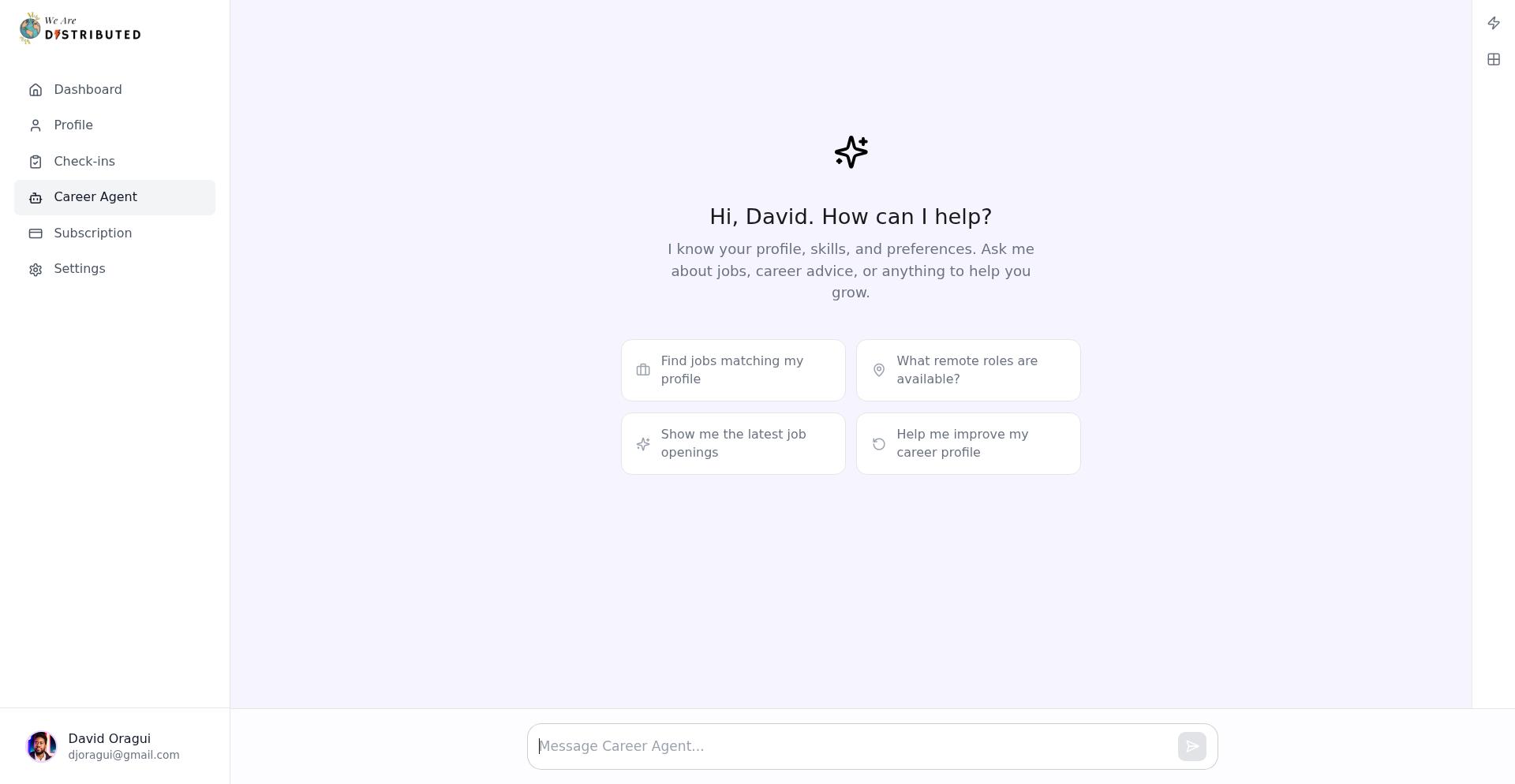
You'll see suggestion chips like "Find jobs matching my profile" to get started quickly—click any chip to send that prompt automatically.
Using the 'Find suitable jobs' recipe
The "Find suitable jobs" recipe is a pre-built workflow that searches for positions matching your profile and automatically tracks strong matches.
How it works:
The recipe analyzes your skills, experience, and job title preferences
It searches across all hiring regions using relevant keywords
Strong matches are automatically added to your Job Tracker
You receive a summary with job cards showing title, company, skills, and salary/location badges
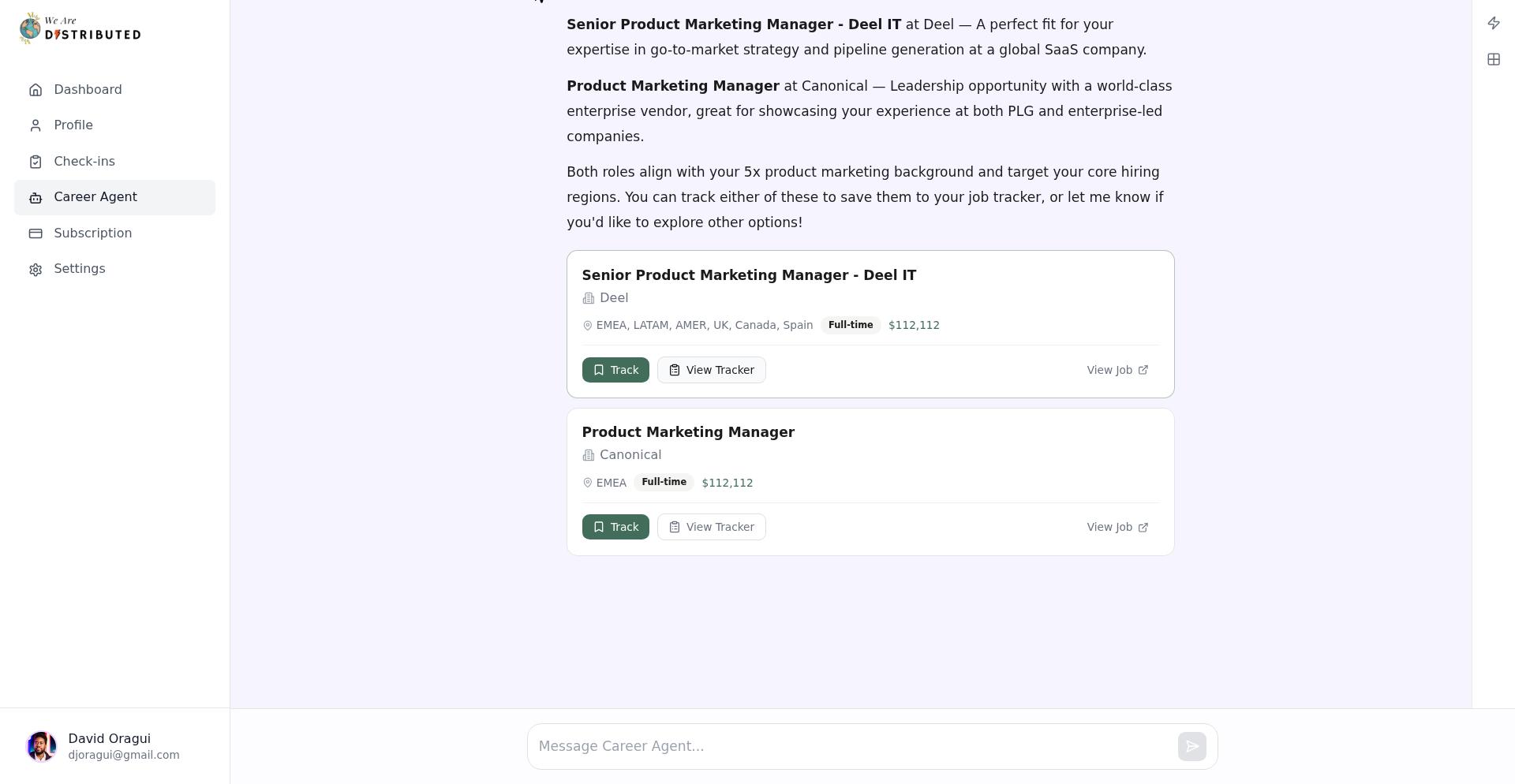
Job cards include a "Track" button to save opportunities and a "View Job" link to open the full listing.
Setting up automated workflows
With a Plus membership or higher, you can schedule the "Find suitable jobs" recipe to run automatically.
To create a workflow:
In Career Agent, open the sidebar and click "Workflows"
Click "Create a new workflow" or select the "Find suitable jobs weekly" button
Give your workflow a name (e.g., "Weekly job search")
Select "Find suitable jobs" from the Recipe dropdown
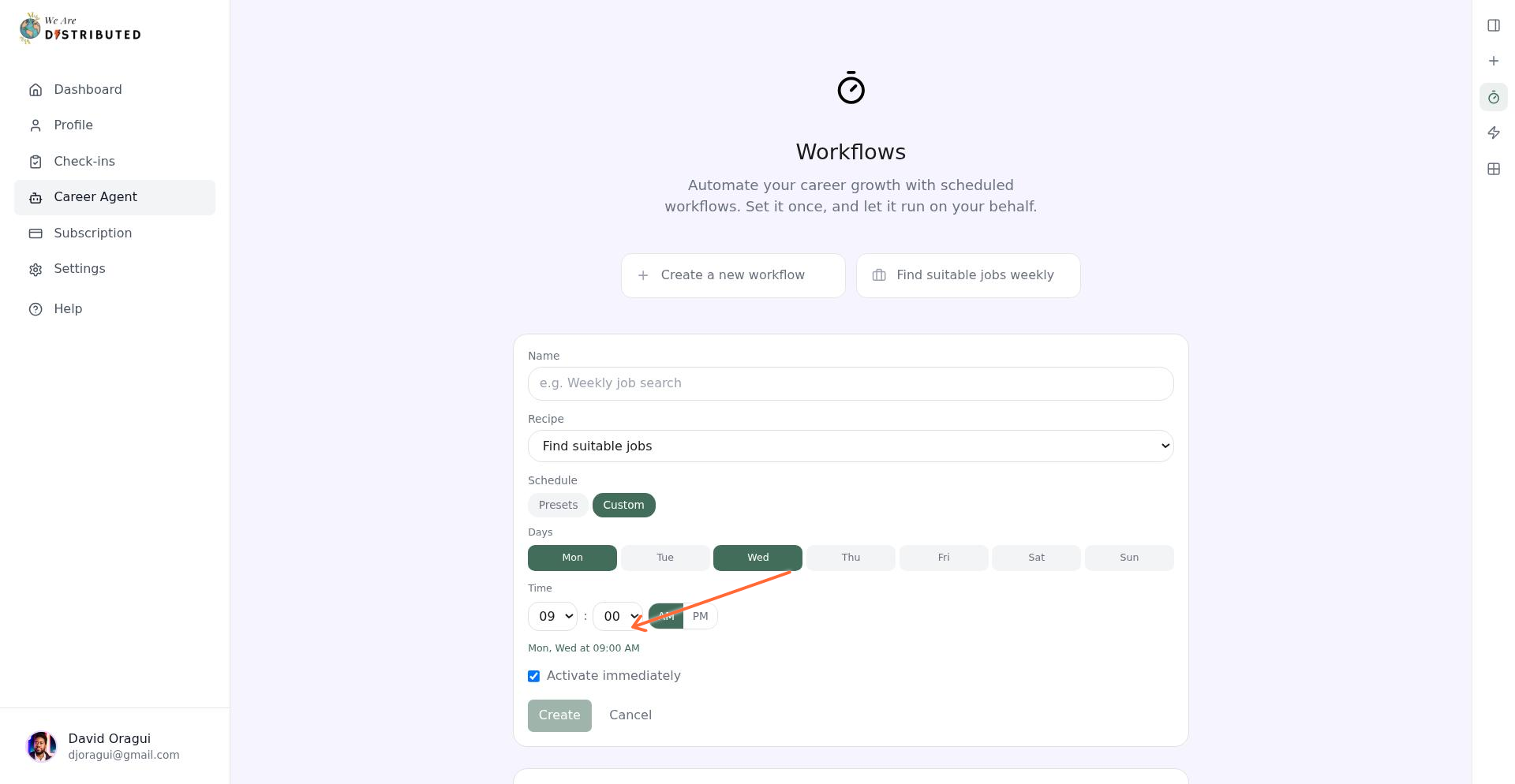
Under Schedule, choose "Presets" for quick options like Weekly, or click "Custom" to build your own
To create a custom schedule:
Click the "Custom" tab next to Presets
Select which days to run by clicking day buttons: Mon, Tue, Wed, Thu, Fri, Sat, Sun (at least one required)
Set your execution time using the hour dropdown (01-12), minute dropdown (00, 15, 30, 45), and AM/PM toggle
Check the schedule summary below the builder to confirm (e.g., "Weekdays at 09:00 AM")
Toggle "Activate immediately" if you want the workflow to start right away, then click "Create" to save.
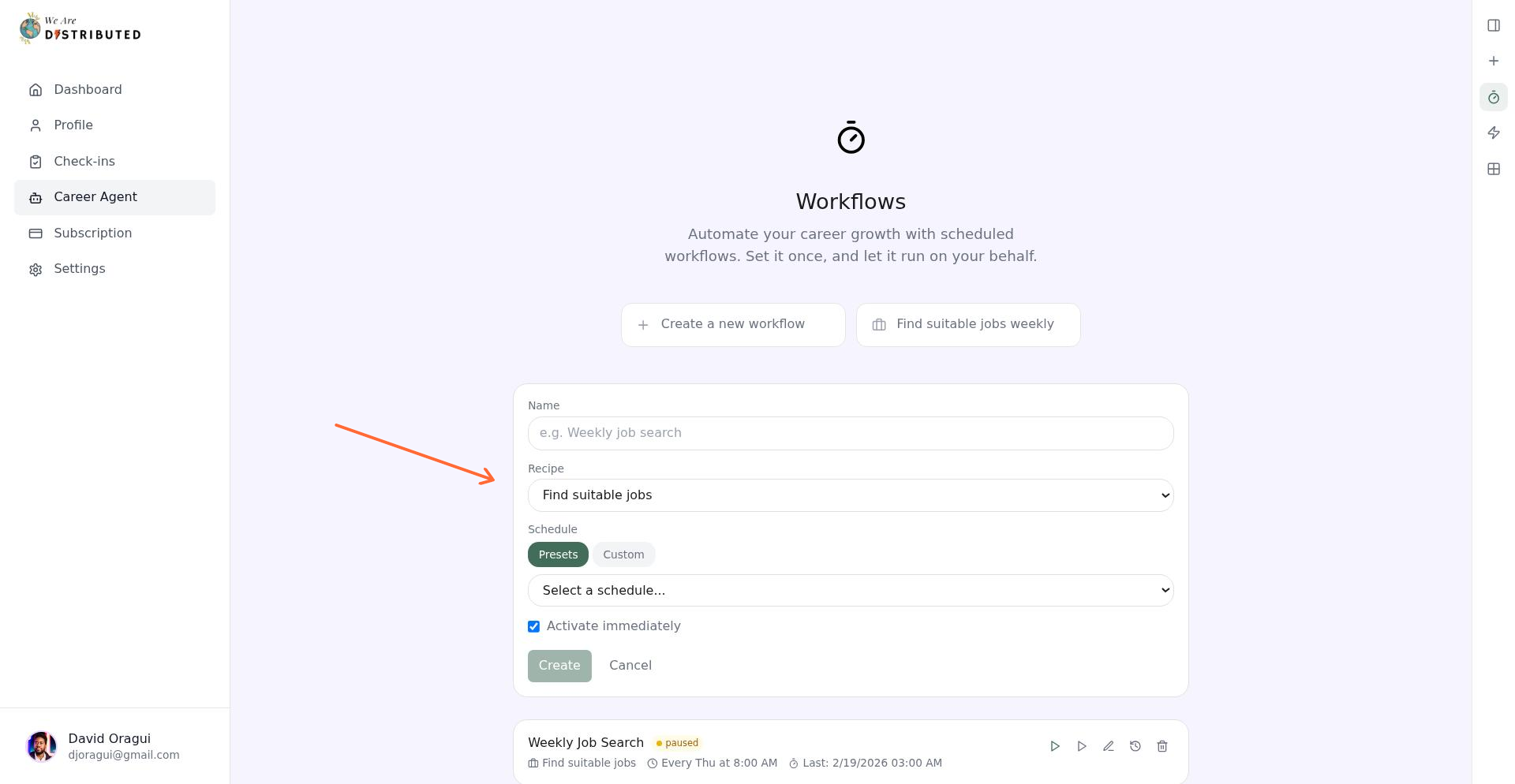
Your workflow will post chat notifications with summaries and job cards each time it runs. For example: "Workflow 'Weekly Job Search' completed—Found 12 jobs, tracked 3."
Managing your workflows
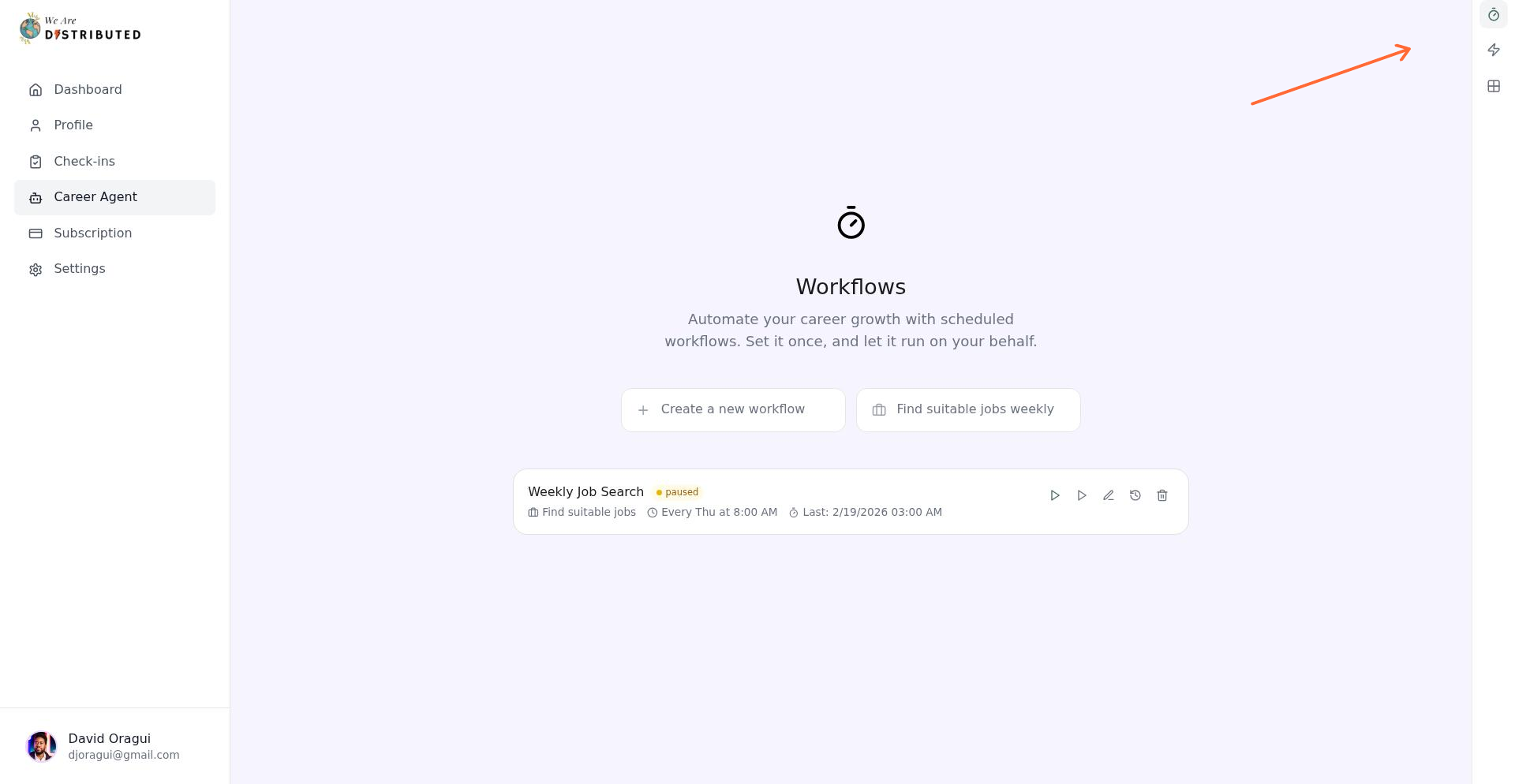
The Workflows tab shows all your automated searches with their status (Active, Paused, or Error) and last run time.
Available controls:
Run now: Trigger the workflow immediately
Pause/Resume: Stop or restart scheduled runs
Edit: Change the schedule or recipe settings
View History: See timestamps, results, and any errors from past runs (see Viewing workflow run history below for details)
Delete: Remove the workflow entirely
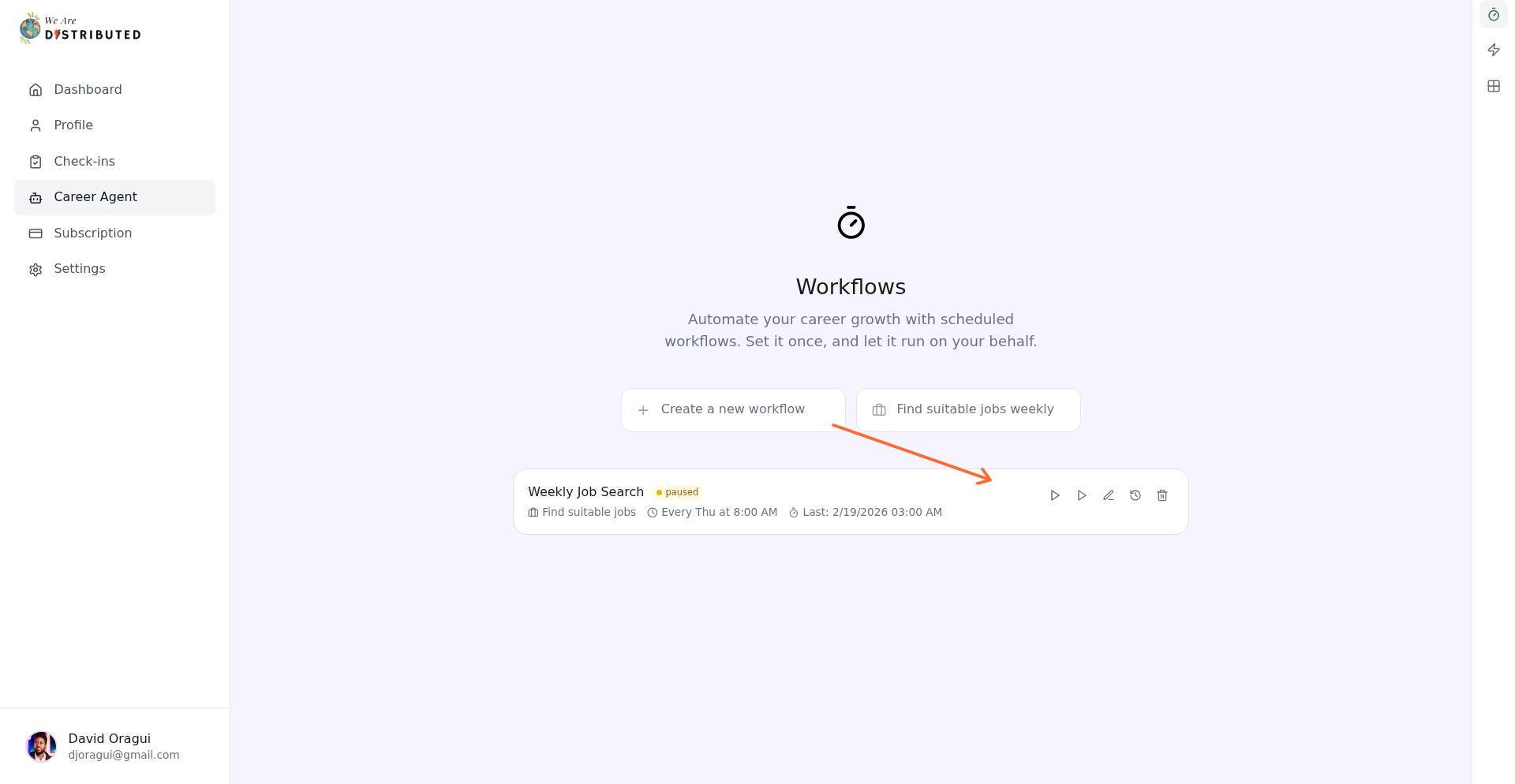
Workflows reduce manual searching and help you stay on top of new remote opportunities without checking the job board every day.
Switching between Chat and Workflow views
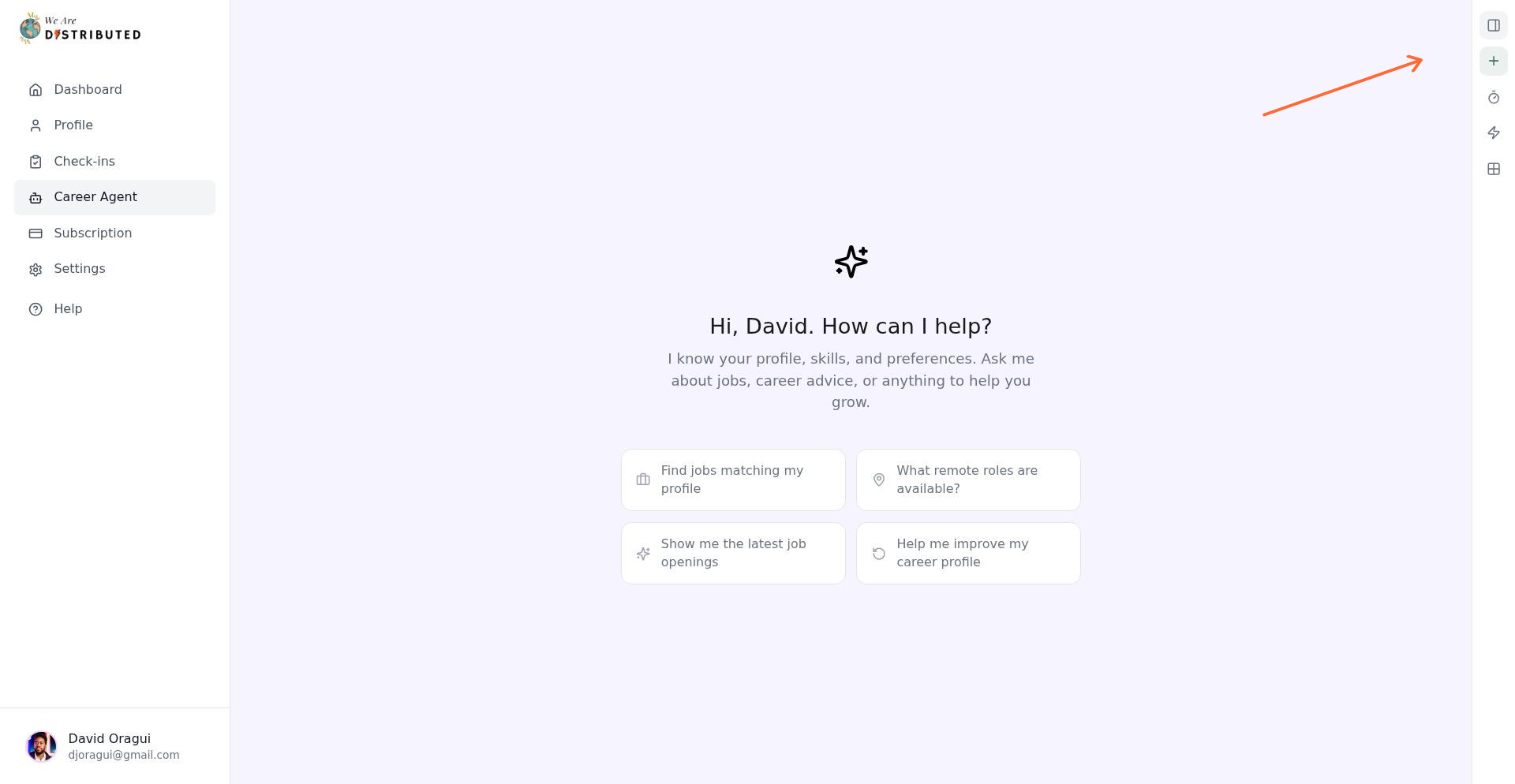
Career Agent's sidebar lets you switch between different views using the icon buttons at the top:
Chat History (message icon): View your conversation threads and projects
Workflows (timer icon): Access workflow management and scheduling
Actions Library (zap icon): Browse available automation recipes (Plus and above)
Apps (grid icon): Quick access to Job Tracker, Resume Builder, and Career CRM
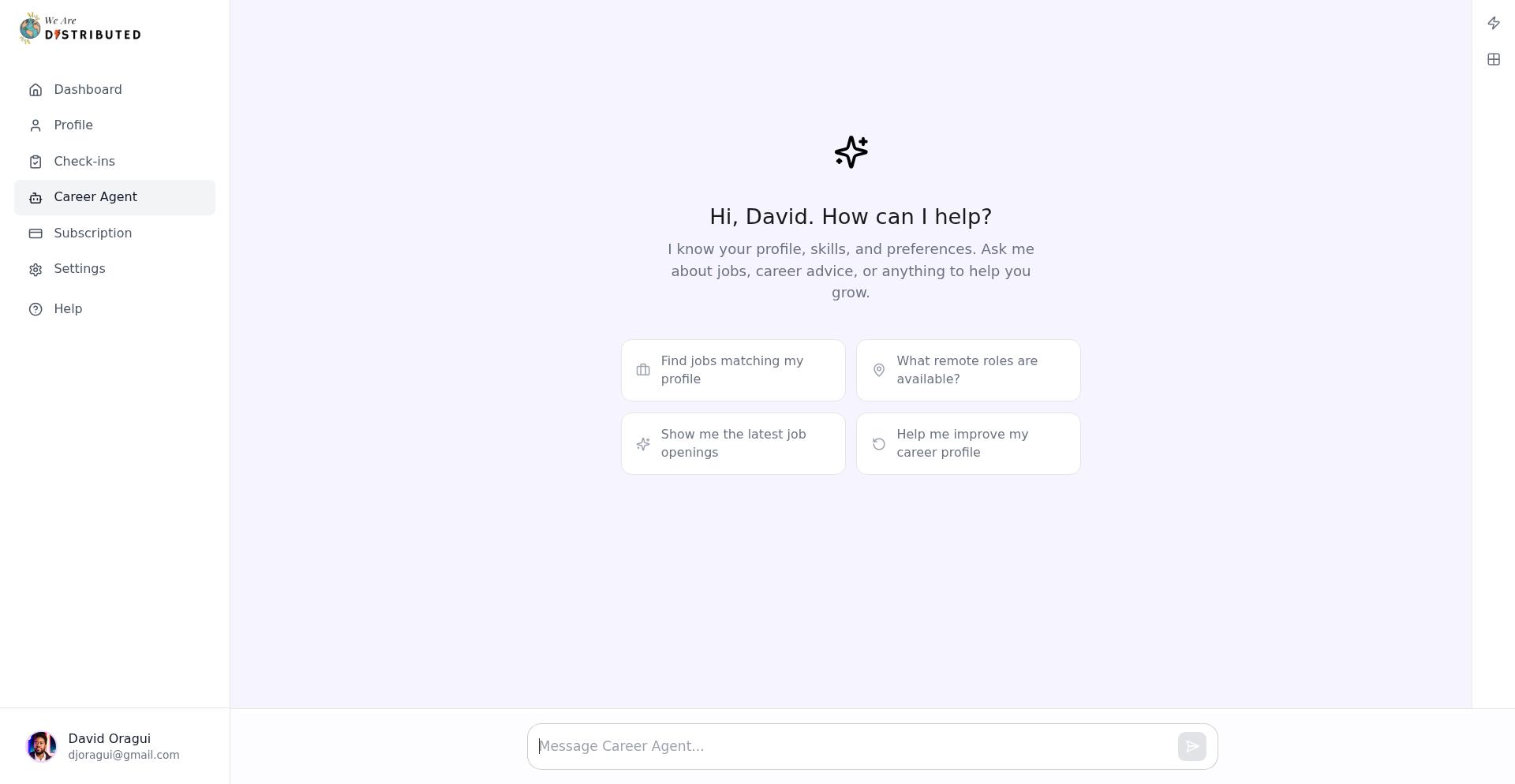
The active view highlights in green. Click any icon to switch views instantly.
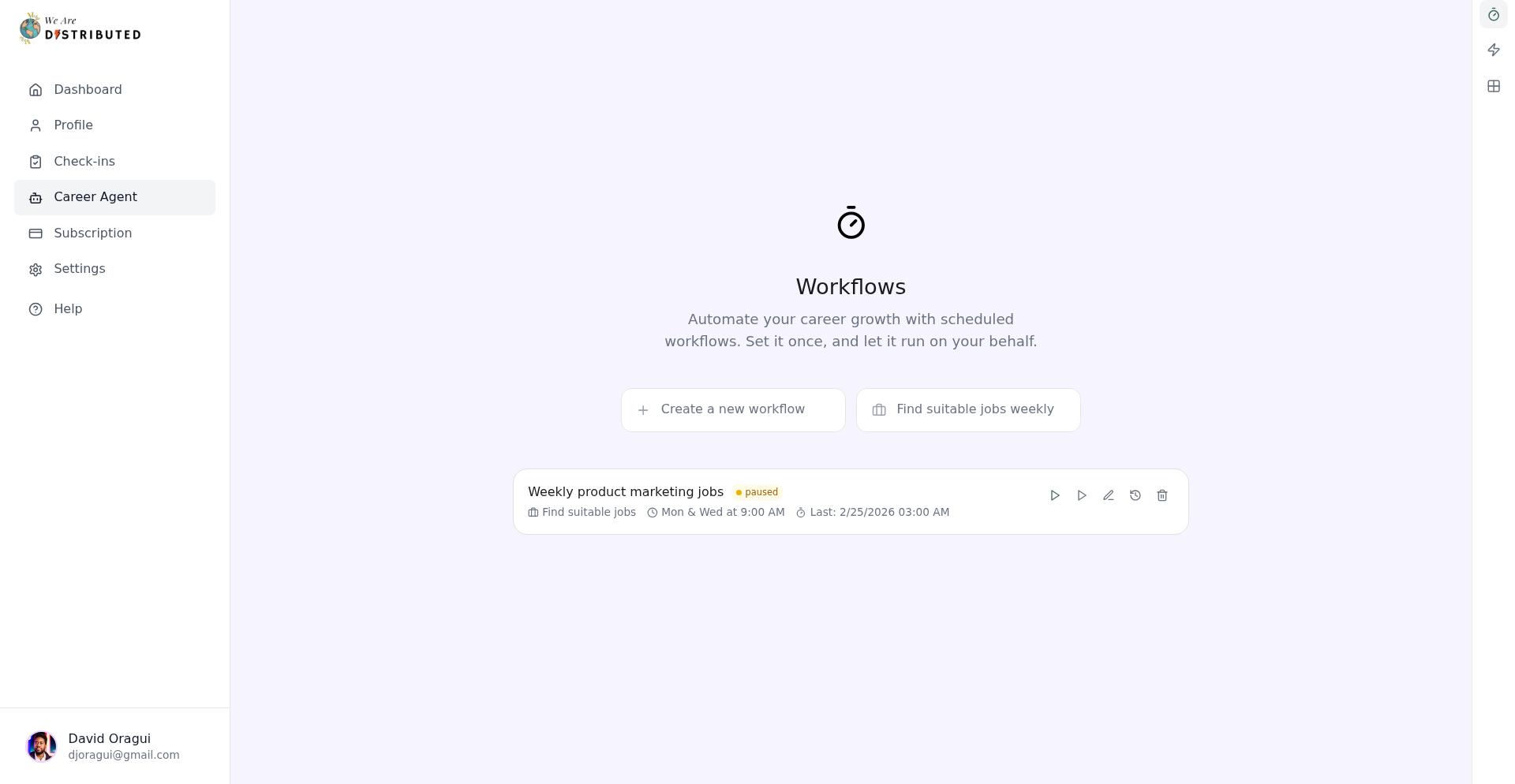
When the sidebar is collapsed, click the Plus icon at the top to start a new chat. This automatically switches back to Chat view.
Reading workflow execution status
The Workflows sidebar shows each workflow's current state at a glance:
Status dot: Green (active), gray (paused), or red (error)
Schedule: Shows when the workflow runs (e.g., "Mon, Wed, Fri at 09:00 AM")
Last run: Timestamp of the most recent execution
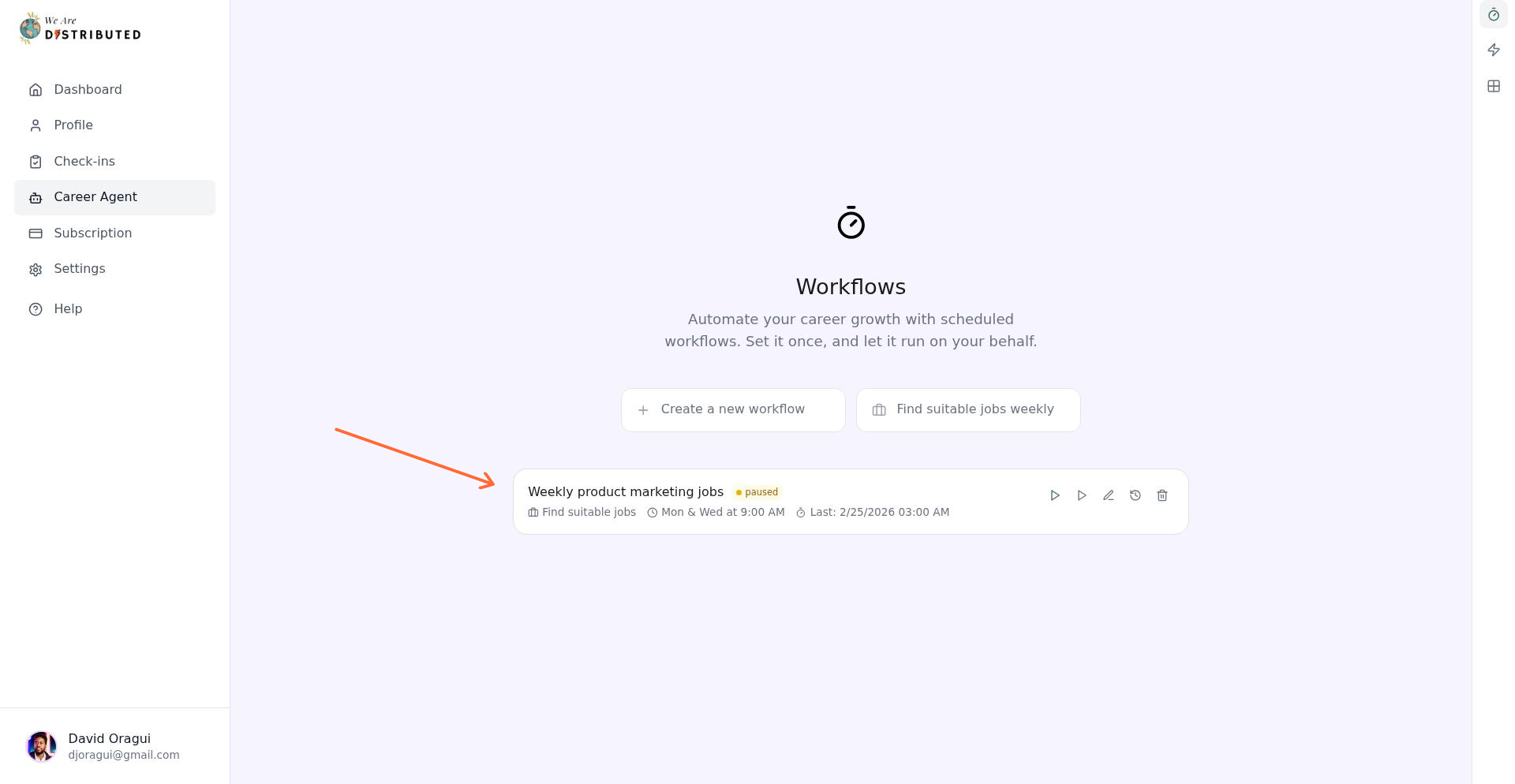
If a workflow fails, the status dot turns red and the error message appears in the workflow history.
Viewing workflow run history
To see detailed logs of past workflow executions, click the History icon (circular arrow) on any workflow card.
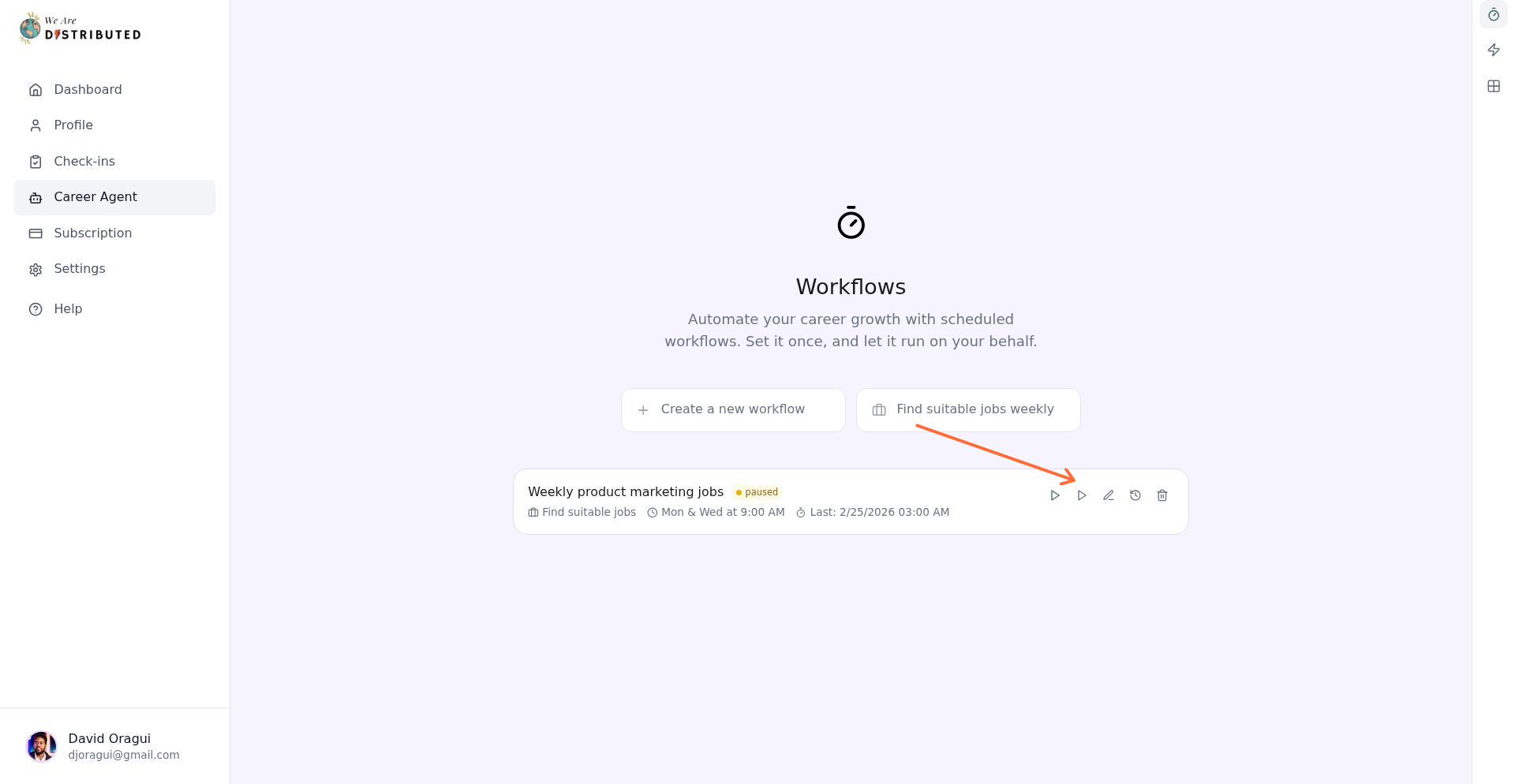
The history panel shows:
Execution timestamp
Success or error status
Result summary (e.g., "Found 8 jobs, tracked 2")
Any error messages in red for troubleshooting
History helps you verify that workflows are running as expected and diagnose issues if results stop appearing.
Custom schedule builder
When creating or editing a workflow, the Custom schedule tab gives you full control over execution timing.
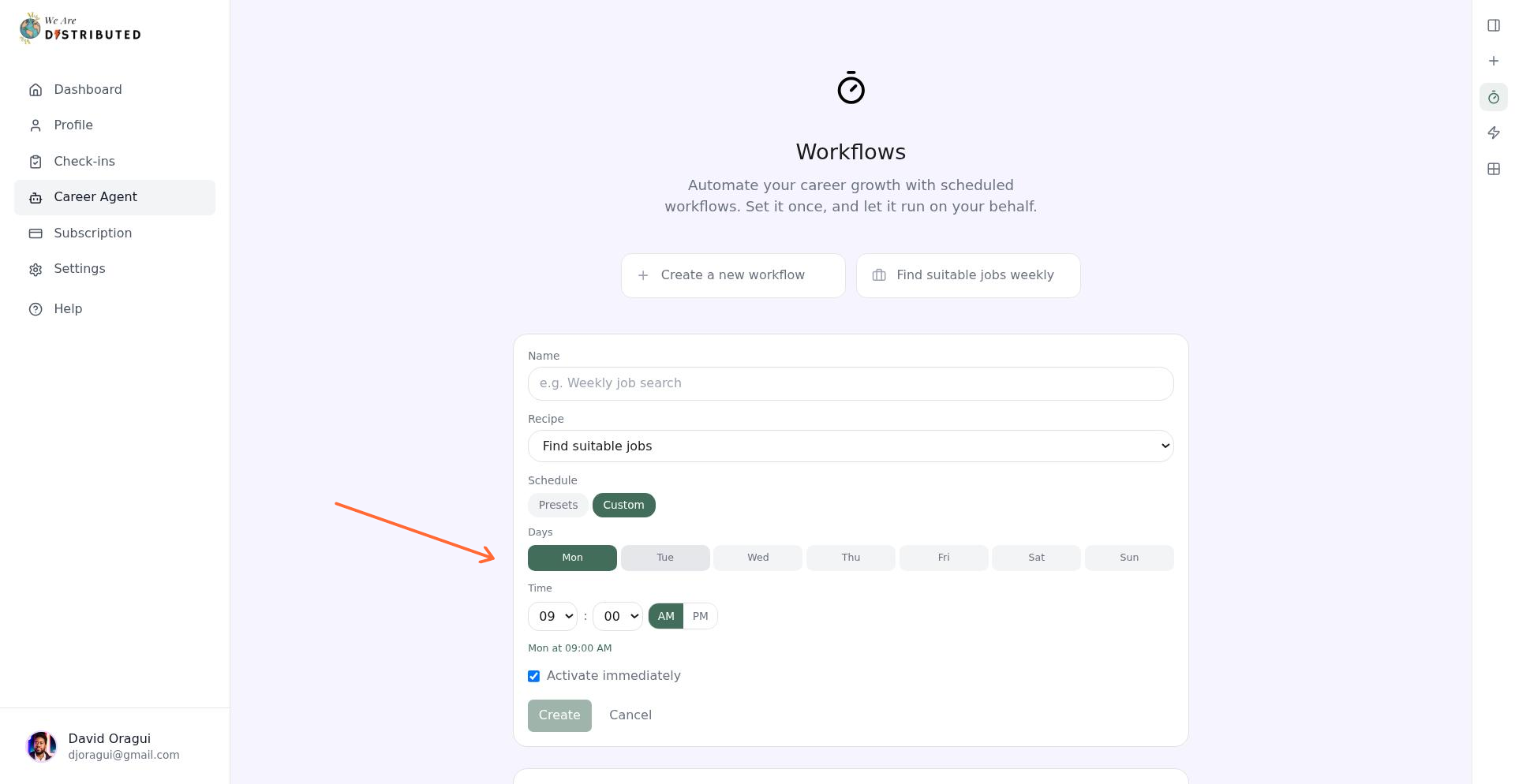
To build a custom schedule:
Select one or more days by clicking the day buttons (Mon-Sun). Selected days highlight in green.
Choose the hour (01-12) from the dropdown
Choose the minute (00, 15, 30, or 45) from the dropdown
Toggle AM or PM
The schedule summary updates in real time below the builder, showing exactly when your workflow will run.
Workflows use UTC time. If you're in a different timezone, adjust your schedule accordingly to match your local working hours.
Once you're satisfied with the schedule, toggle "Activate immediately" to start the workflow right away, or leave it off to activate manually later.
Using projects to organize conversations
Career Agent lets you create up to 5 projects on Lite (unlimited on Plus and above). Projects help you separate different job searches or career topics.
To create a project, use the sidebar to add a new project, name it, and move relevant conversations into it.
Plan requirements
Free: Limited access to AI Career Agent (limited queries)
Lite: Full chat access, up to 5 projects, recipes
Plus and higher: Unlimited projects, automated career workflows (Email + SMS), advanced actions library
If you're on a free plan, you'll see an "Upgrade to Lite" banner when trying to access Career Agent.