
Edit workflow names and schedules
You can update your workflow's name or schedule at any time to adjust how and when your automation runs.
Workflows are available on Plus plans and above. You'll need an existing workflow to edit.
Open the workflow editor
Navigate to Career Agent from your dashboard sidebar, then open the Workflows panel using the timer icon in the right sidebar.
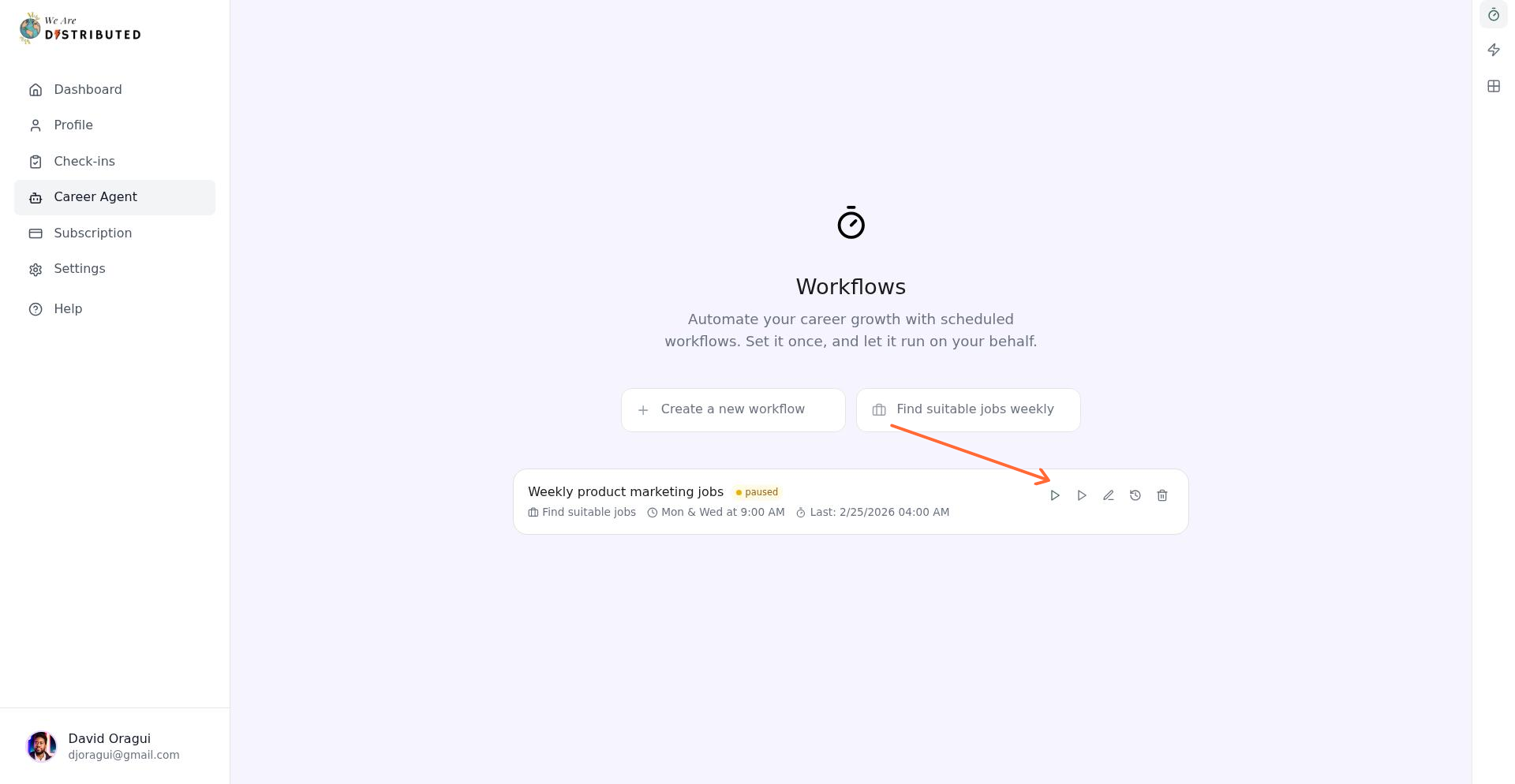
Click the Edit button (pen icon) on the workflow you want to update. The editor expands directly below the workflow card.
Change the workflow name
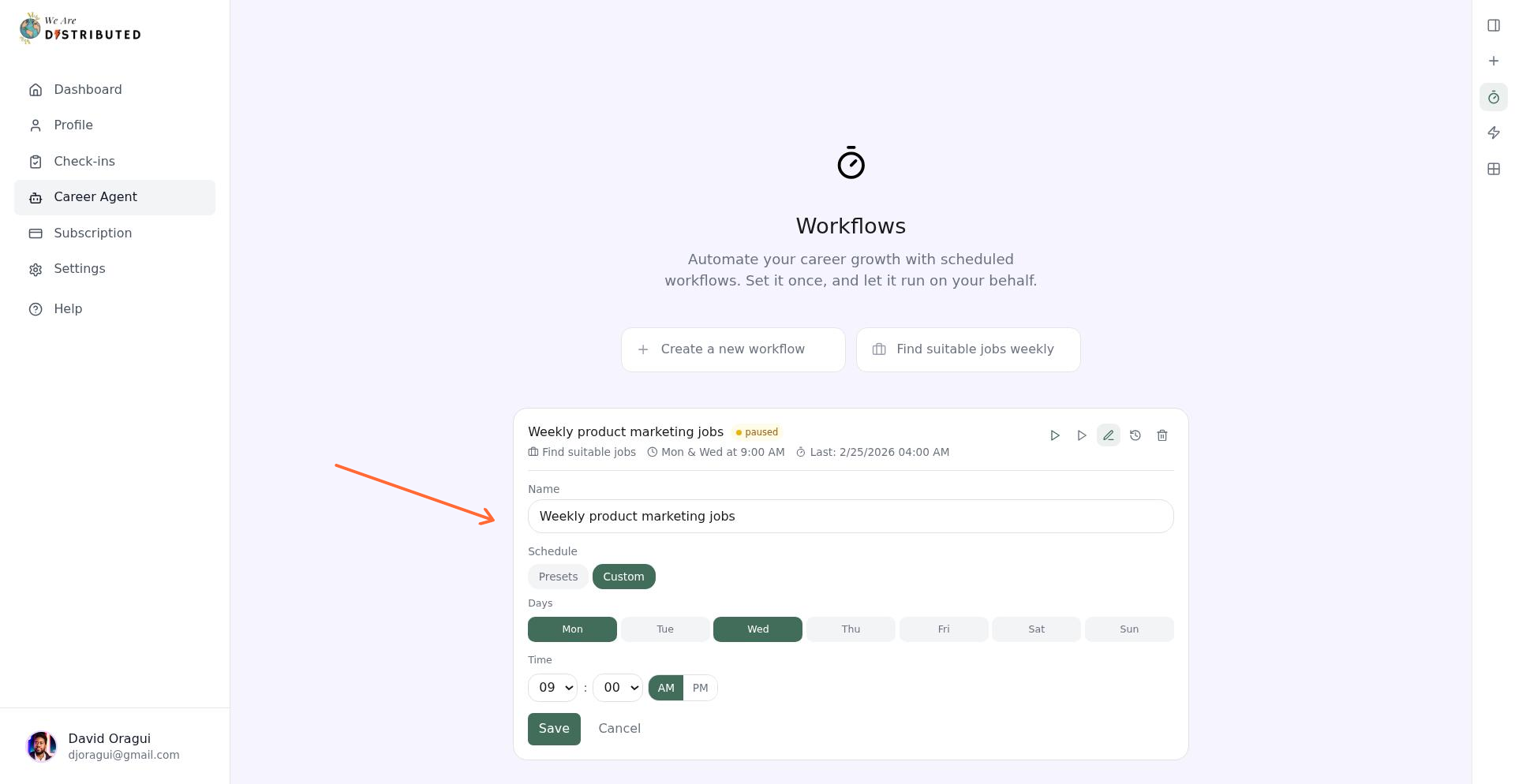
Update the Name field with a descriptive label like "Weekly job search" or "Daily check for remote roles." The name helps you identify the workflow in your list.
Update the schedule
Choose how often the workflow runs using one of two options:
Presets: Select a common schedule from the dropdown (e.g., "Daily at 9 AM", "Every Monday").
Custom: Build your own schedule by selecting specific days and times.
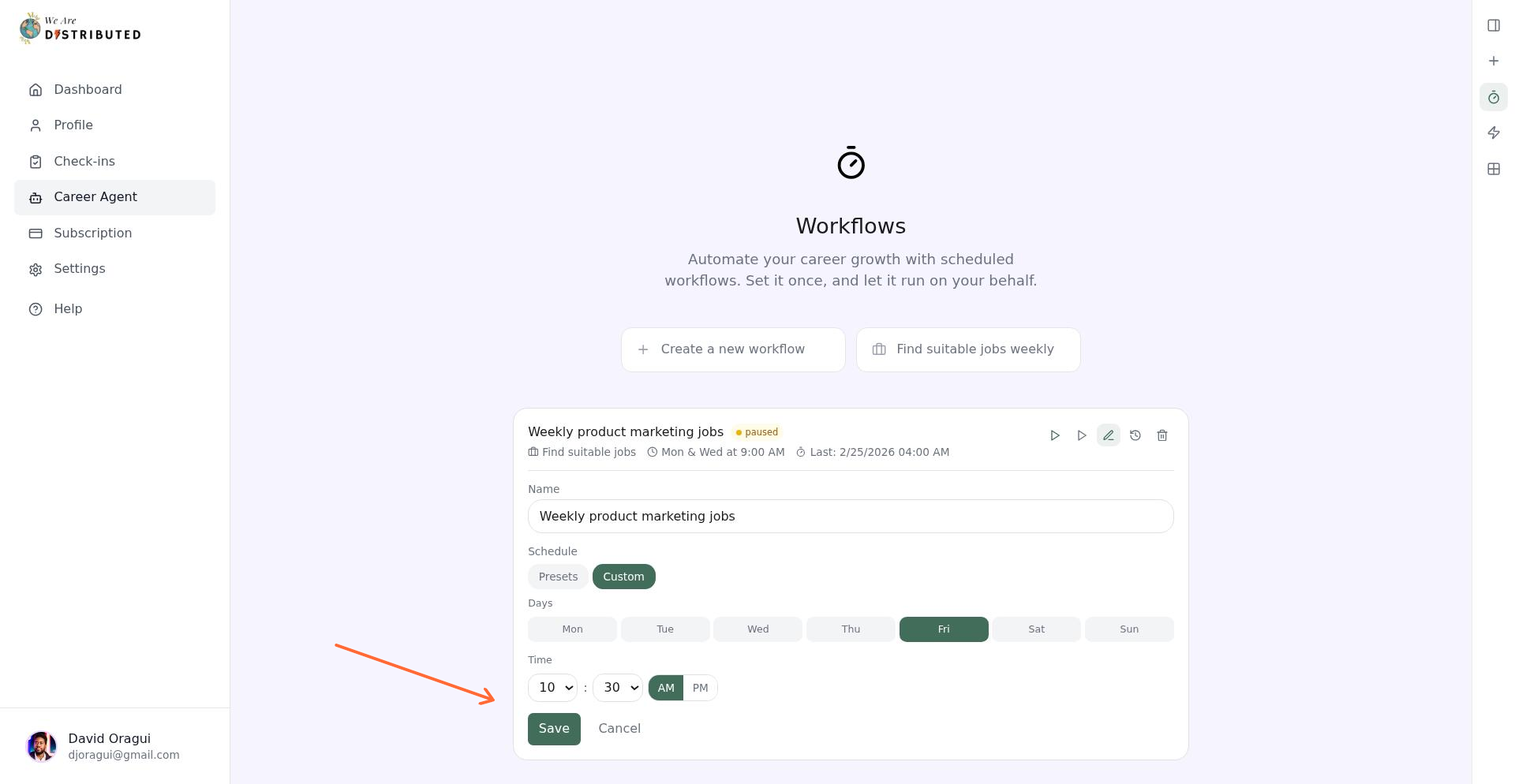
When you use Custom, select the days (Mon–Sun) and set the hour and minute.
Save your changes
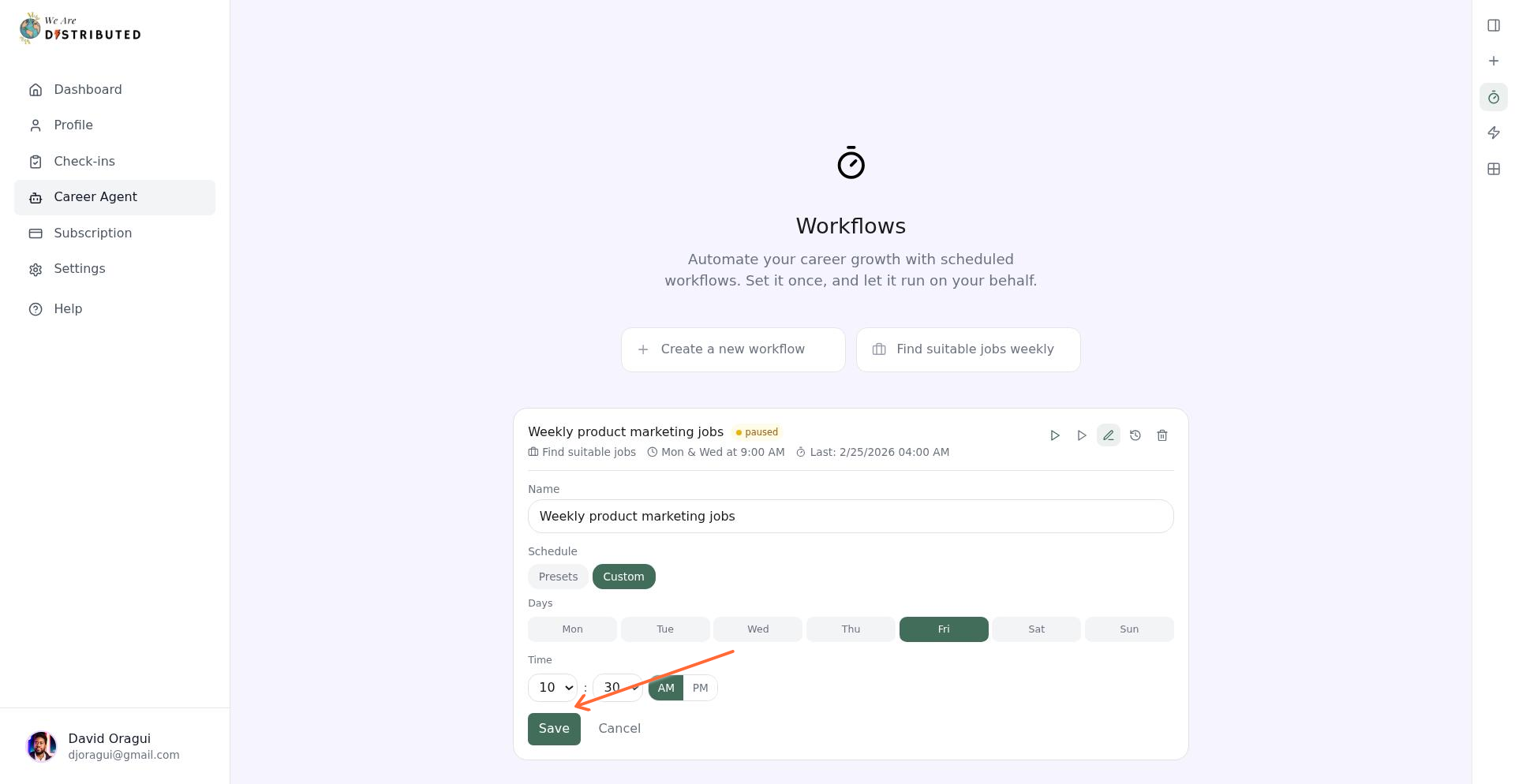
Click Save to apply your changes. A success message confirms the update. Click Cancel to discard edits and close the editor.
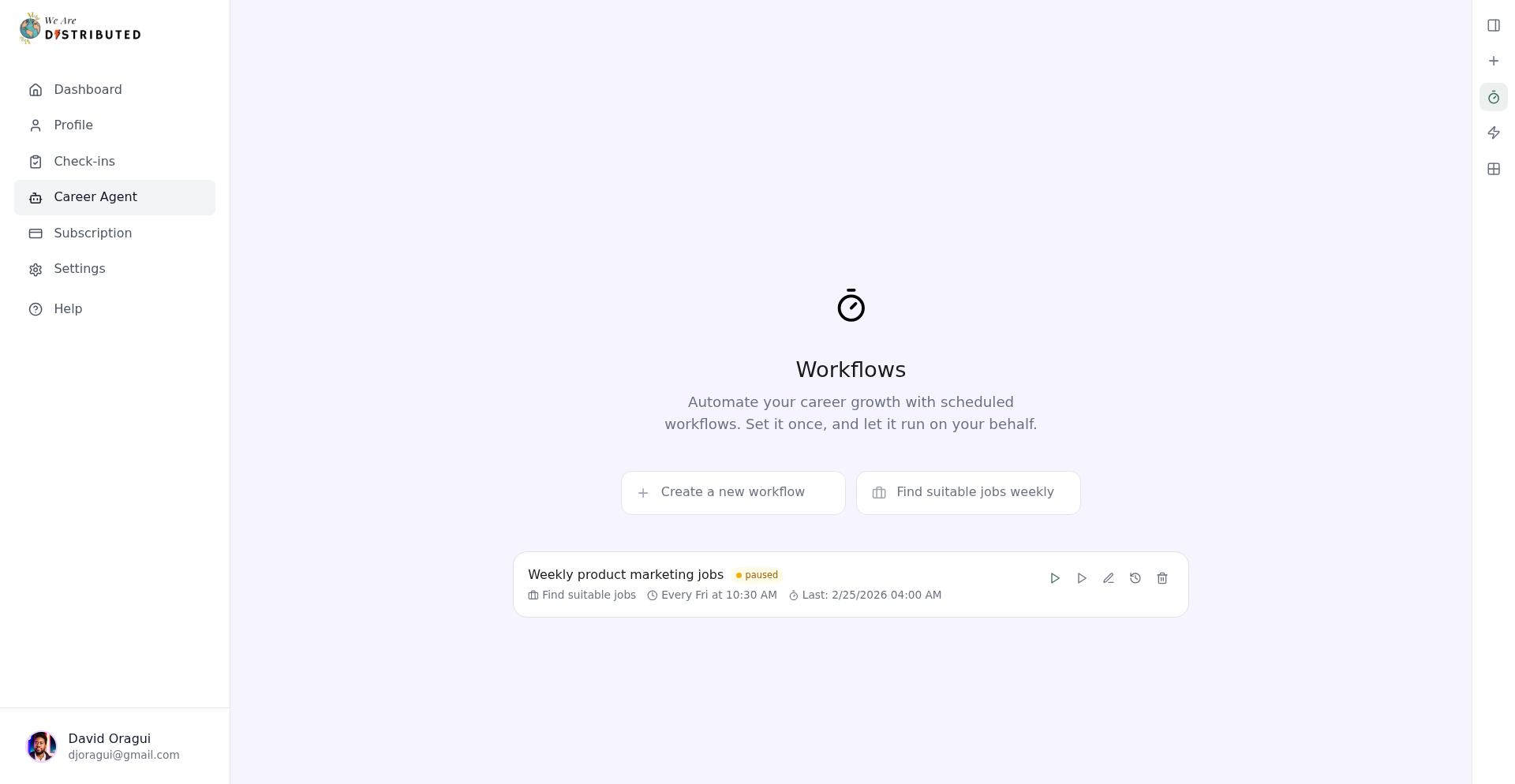
Your workflow now runs with the updated name and schedule. You can edit it again anytime using the same process.
Learn more about Career Agent automation in Using Career Agent to automate your job search.