
Open your profile
- In the dashboard, click Profile in the sidebar, or open the account menu and click View Profile.
- In the Job Tracker, open the account menu at the bottom of the sidebar and click View Profile. Your profile opens in the dashboard with a Back to Job Tracker link at the top.
- Settings in the dashboard sidebar opens the Account tab of your profile.
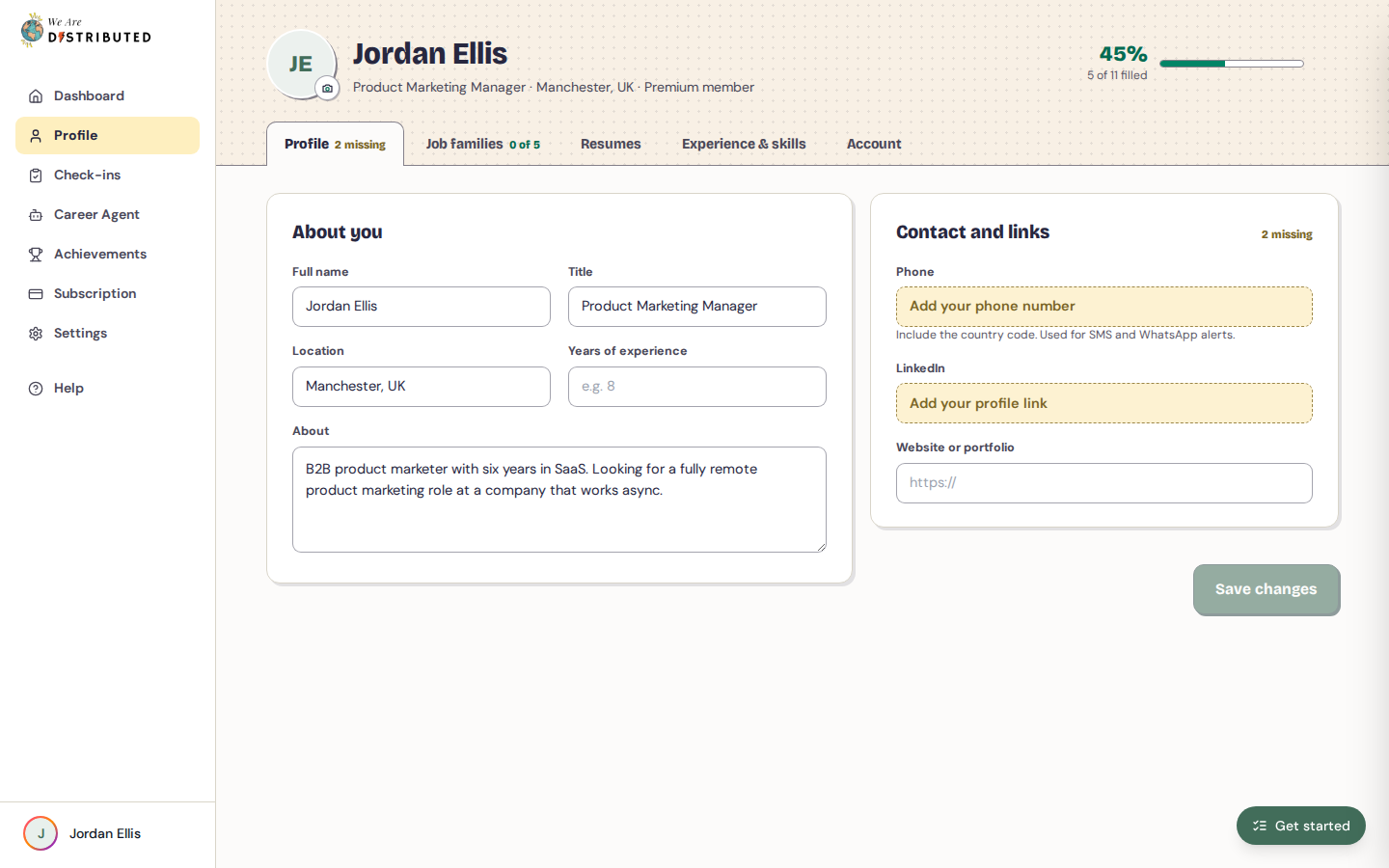
The top of the page shows your photo, name, title, location and plan, and how complete your profile is. Click the camera button on your photo to change it (JPG, PNG or GIF, up to 5 MB), or click Remove photo.
Update your details
- Open the Profile tab.
- Under About you, fill in your Full name, Title, Location, Years of experience and About.
- Under Contact and links, add your Phone (with the country code), LinkedIn and Website or portfolio.
- Click Save changes. To undo your edits instead, click Discard changes.
Career Agent uses your location to decide which jobs it suggests, so keep it up to date.
Choose your job families
- Open the Job families tab.
- Search for a family and add it. You can pick up to 5, and each shows how many open roles it has. Click Remove to take one off.
- Click Save families.
Your families tune the Job Tracker's Find jobs board and New in your families, and your Career Agent match alerts.
Add your resumes
You need a Lite, Plus, Extra or Premium membership to keep resumes on your profile. Lite keeps 2 resumes; Plus and above keep as many as you like.
- Open the Resumes tab.
- Click Upload your first resume (or Add another resume), or drop a file onto it. You can upload a PDF or Word (.docx) file of up to 5 MB.
- If you have more than one resume, click Make primary on the one you want to use by default. Your Primary resume is the one the Resume Analyzer reads.
Each resume also has Download and Delete. Deleting a resume removes it from every We Are Distributed app. On Lite, once you've used both resumes, delete one to upload a replacement.
Add your experience and skills
- Open the Experience & skills tab.
- Click Add a role, enter the Job title, Company, Start and End, then click Add role.
- Under Skills, type a skill and press Enter. Click × to remove one.
- Click Save changes.
Manage your account
The Account tab is where you:
- change your email address or password (see Changing your email address and Login and password management);
- click Get a new code to get a new login code;
- turn Weekly check-in reminders on or off;
- delete your account (see Delete your account).