
Open Resume Builder
- Sign in to your dashboard.
- Select Resume Builder.
Build your resume
The page has three columns. On the left you edit one section at a time. In the middle are your resume pages, the same PDF you download, updating as you type. On the right are your score and the list of your resume's sections.
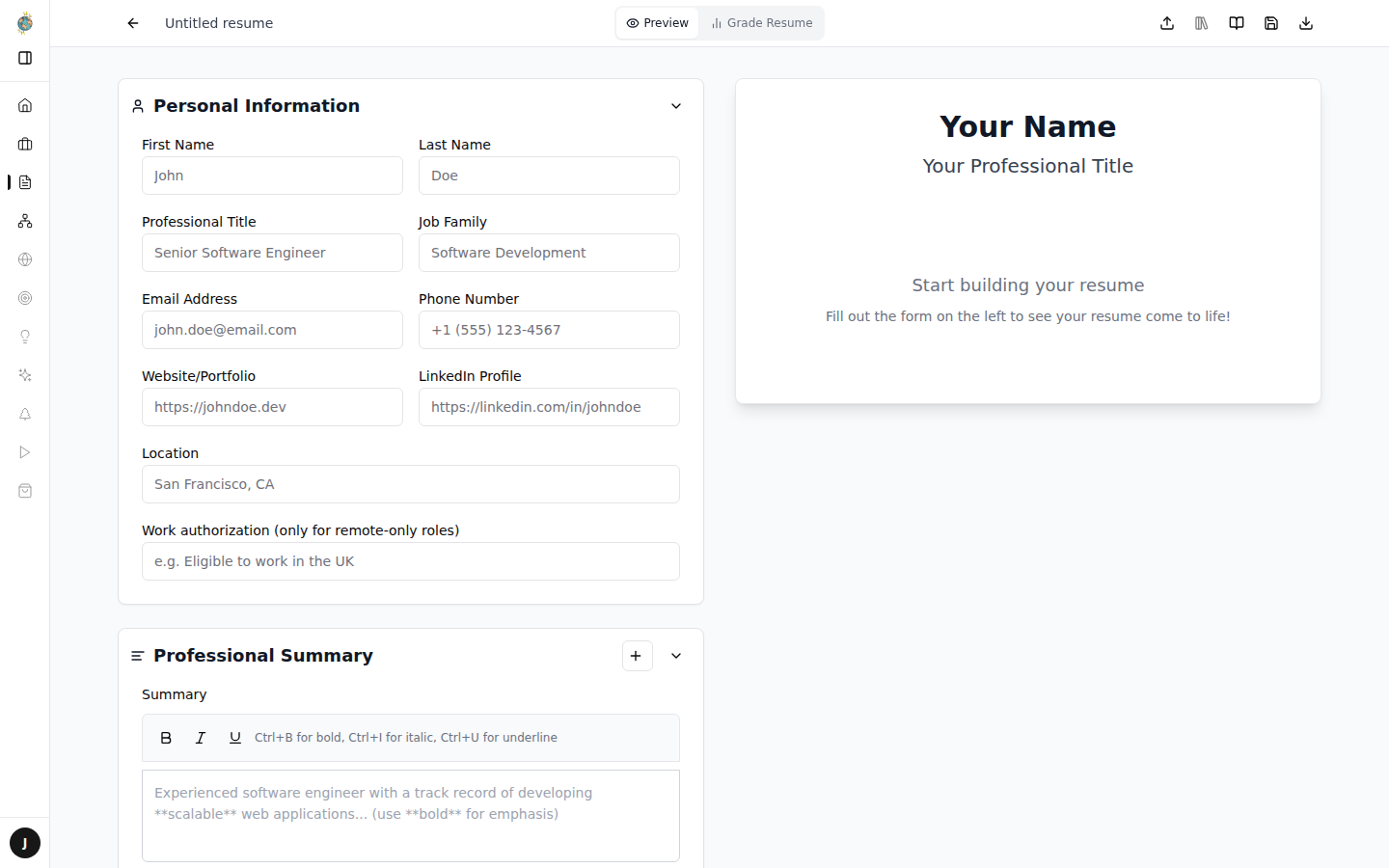
- Click Details on the right and enter your name, Target role, contact details and Work authorisation. Tick This resume is for remote-only roles if that applies.
- Click Summary and write a short summary. Add Target job keywords from the job description.
- Click Career highlights to add your strongest results.
- Under Experience, click a role to edit it, or Add a role to add one. Fill in the Job title, Company, Company details (such as size, stage, revenue or the KPIs you owned), Location, Start and End (blank if current), then add your achievements.
- Click Skills and Education to finish.
To rename your resume, click its name at the top left of the page and type a new one. A new resume starts as Untitled resume.
Import an existing resume
If you already have a resume, you can import it instead of typing everything in. Your file is read only in your browser; only the details you add to your resume are saved.
- Click Import a resume at the top of the page.
- Click Choose a resume to import and pick a PDF, DOCX or TXT file of up to 8 MB. Scanned PDFs without selectable text can't be read.
- Check what was imported, including anything listed under Needs your review.
- Click Add to blank fields to fill in only empty fields, or Replace current draft to replace what's already in the form.
- Review the filled-in fields. Your changes save automatically.
Review your resume
Resume Builder scores your resume and shows what to improve as you work. Your score out of 100 is at the top of the right-hand column, with how many fixes are left. Each section in the list shows how many fixes it needs, or Done when there's nothing left.
- Look for numbered marks beside lines on your resume pages. Each mark matches a numbered tip in the form, under the field it's about.
- Click a mark to open that section and highlight its tip. The tip says what to change and how many points fixing it is worth.
- Edit the field. The score, the marks and the section list update as you type.
Tips about the resume as a whole appear under Across the whole resume in Details. Suggestions marked Worth adding don't cost you points.
To get feedback from a person, click Book a resume review at the bottom of the right-hand column.
Keep accomplishments in your Library
Your Library stores accomplishments you can reuse in any resume. Click Library at the top of the Resume Builder dashboard to open it.
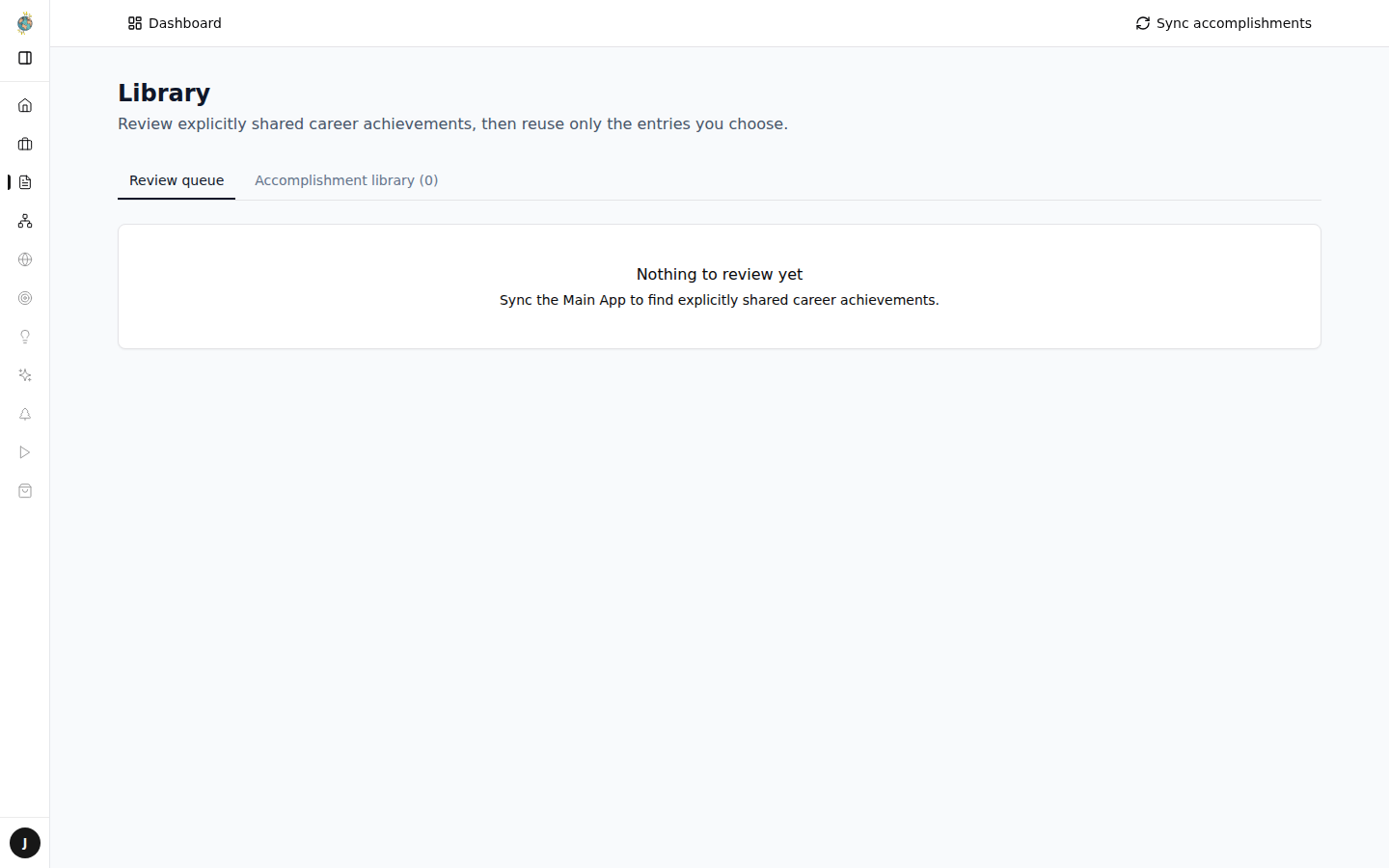
Bring in achievements from your check-ins:
- When you submit an employment check-in, choose Career achievement under How should this check-in be classified? and turn on Add to your resume builder.
- In your Library, click Sync accomplishments. Achievements you shared appear in the Review queue, and the Library button shows how many are waiting.
- For each one, edit the wording under Review wording, then click Add to library. Click Dismiss to skip it, or choose an entry under Merge into existing… and click Link source to add it to one you already have. Click Restore to review to bring back one you dismissed.
If syncing fails, open Resume Builder again from your dashboard and try once more.
Add your own: on the Accomplishment library tab, fill in the accomplishment and, if you like, the employer, role, skills, tags and date, then click Add to library. Search and filter your entries, click Edit to change one, or Archive to put it away.
Add an accomplishment to your resume
- Open your resume. (On a new resume, Add from Library turns on once your resume has saved for the first time.)
- Click Add from Library at the top of the page.
- Under Choose a role…, pick the job in your work history where the accomplishment belongs.
- Click Add next to the accomplishment. It's added to that job.
Save a draft
Resume Builder saves your resume automatically a moment after you stop typing, so there's no save button. Next to the resume's name you'll see Saving…, then when it last saved, such as Saved just now.
Download the PDF
When your resume looks right, click Export PDF at the top of the page to download a PDF copy.
Review the preview before exporting so your PDF matches the version you want to share.
You can also download a saved resume from My Resumes: click the download icon on its card.
What to do next
After you export your resume, you can upload it to the Job Tracker for resume analysis and job application workflows. See How to upload your resume to the job tracker and Using Career Agent to automate your job search.