
Find your groups
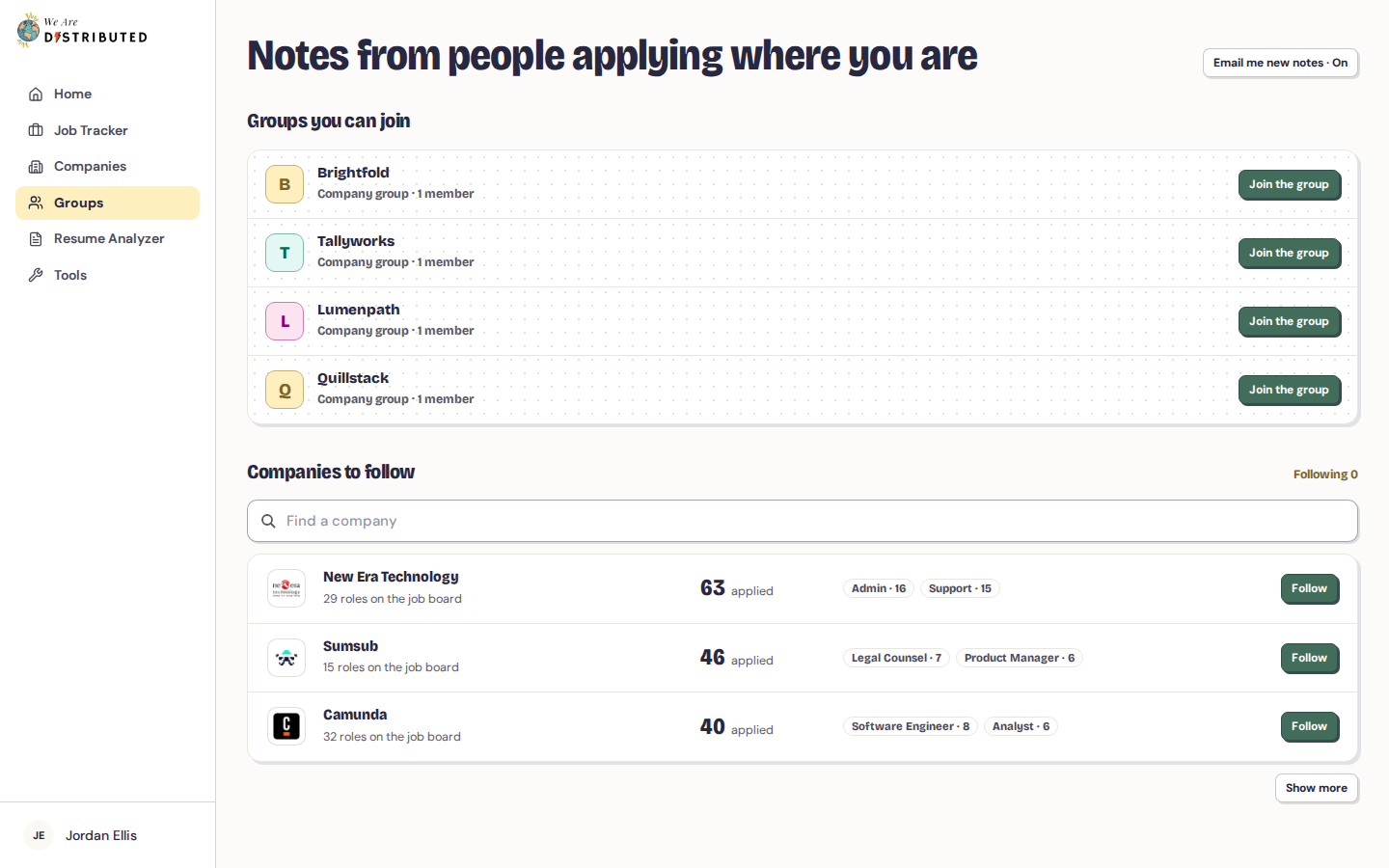
Click Groups in the Job Tracker sidebar. The page shows:
- Company groups — one board per company, where members who applied there share notes. You'll see a company here once you've tracked a job there or followed it, as long as its board has something to read. Company groups stay open for good.
- Role groups — a group for a specific role at a company, shared with other members who applied for it. Role groups close after 30 quiet days.
- Groups you can join — company and role groups for jobs you've applied to. Click Join the group to join one.
- Companies to follow — companies you can follow to read their boards before you apply.
You can only join groups for roles you've applied to. When you mark a job as applied in the Job Tracker and other members have applied for the same role, you'll also see an invite: You're not alone in this! Click Join the group to join, or Maybe later to skip. You'll see the confirmation You've joined the group!
Follow a company before you apply
- On the Groups page, search for a company under Find a company.
- Click Follow. The button changes to Following ✓.
- Once the company's board has notes or research to read, it appears under Company groups. Click Open to read notes from people who applied there.
How many companies you can follow depends on your plan: 3 on Free, 10 on Lite, 30 on Plus, 75 on Extra and unlimited on Premium. To follow another company when you've reached your limit, unfollow one first. To stop following a company, open its board and click Unfollow at the bottom.
Read a company board
A company board is headed Applying to the company name. It shows how many members applied and how many notes are pinned. On Plus and above, it also shows how many members heard back and the typical time to a first reply.
Use the filters to show All notes, notes from people applying for a particular type of role, or notes tagged Before you apply. Click an active filter again to turn it off. Boards can also include tips from the We Are Distributed team and, for some companies, our research on the company's hiring process.
Some boards include notes from the company's hiring team. They're marked Hiring team and show who wrote them and where. Click Hiring team in the filters to see only those. On paid plans, All notes shows the hiring team notes for your job families and any that aren't tied to a role.
On Free, you'll see only a preview of each note, including hiring team notes. A paid membership unlocks every note in every group.
Post a tip
Once you've applied to a company, you can share what you learned on its board, on any plan, including Free. Applications marked Closed count too. Posting doesn't unlock reading: on Free you still see previews of other members' notes.
- Open the company board.
- Click Share what you learned and write your note.
- Choose which role you're posting as, and turn on Before you apply if your note is advice for people who haven't applied yet.
- Click Post tip. A message confirms Note pinned.
You can also share a tip straight from the Job Tracker when you move an application forward; see How to track job applications.
A meter under the box counts your words up to 20. Tips of 20 words or more can earn Career Pass points; see Career Pass: Points, Achievements & Customization.
If you haven't applied yet, the board shows Mark as applied, which takes you to the Job Tracker.
Post in a role group
You can post in a role group once you've applied for that role, on any plan.
- On the Groups page, click Open (or Pin a note) on a role group.
- Under Keep this group open, type your update in the box that shows Share an update with your group…
- Click Pin it. A message confirms Update posted!
The group page shows how many days are left before it closes. Any note keeps the group open for another 30 days. When a role group closes, its notes move to the company's board.
Get emails about new notes
Click Email me new notes at the top of the Groups page to turn email notifications for your groups on or off. The button shows whether it's On or Off. You can also use the Email me new notes switch at the bottom of a company board.
Leave a group
In a role group, click Leave group, then select Yes, leave to confirm. On a company board you've joined, click Leave group at the bottom of the board. A message confirms You've left the group.
Switch between a group and your tracker
When a role group is linked to one of your applications, click Open in tracker in the group header to go back to it in the Job Tracker. To return to the full list of groups, click ← All groups.
For weekly accountability, you can also use Job Search Check-ins to track your progress alongside your group.