
You can also track jobs directly from supported job boards using the browser extension.
Track a job from Career Agent
When the Career Agent recommends jobs, you can save them to your tracker with one click:
- Open Career Agent from the dashboard sidebar
- Ask for job recommendations or browse suggested roles
- Click Track on any job you want to save
The system confirms with a message like "Saved [Job Title] at [Company] to your job tracker."
View your job tracker dashboard
Open your full tracker by clicking View tracker below the job results in Career Agent, Find opportunities on your main dashboard, or Job Tracker in the Job Tracker sidebar.
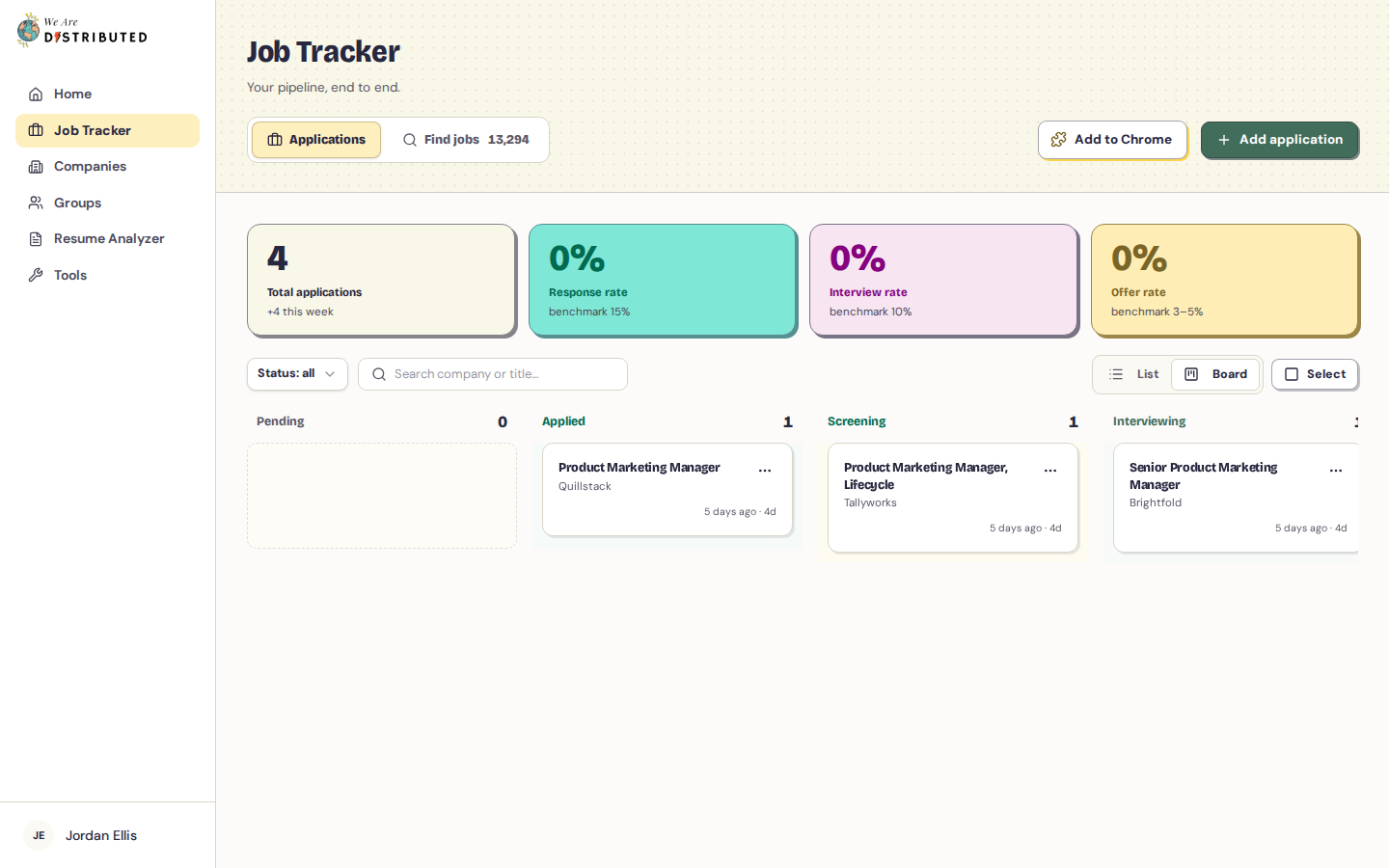
The Job Tracker page shows your pipeline with your total applications and your response, interview and offer rates. On the Applications tab, switch between List and Board views to see your applications organized by status.
Add an application yourself
- On the Applications tab of the Job Tracker page, click Add application at the top of the page.
- Enter the Company name and Job title (both required), plus any other details you have, such as the location, salary range, work type, job URL, job description and notes.
- Click Add application to save it to your tracker.
Track jobs from Find jobs
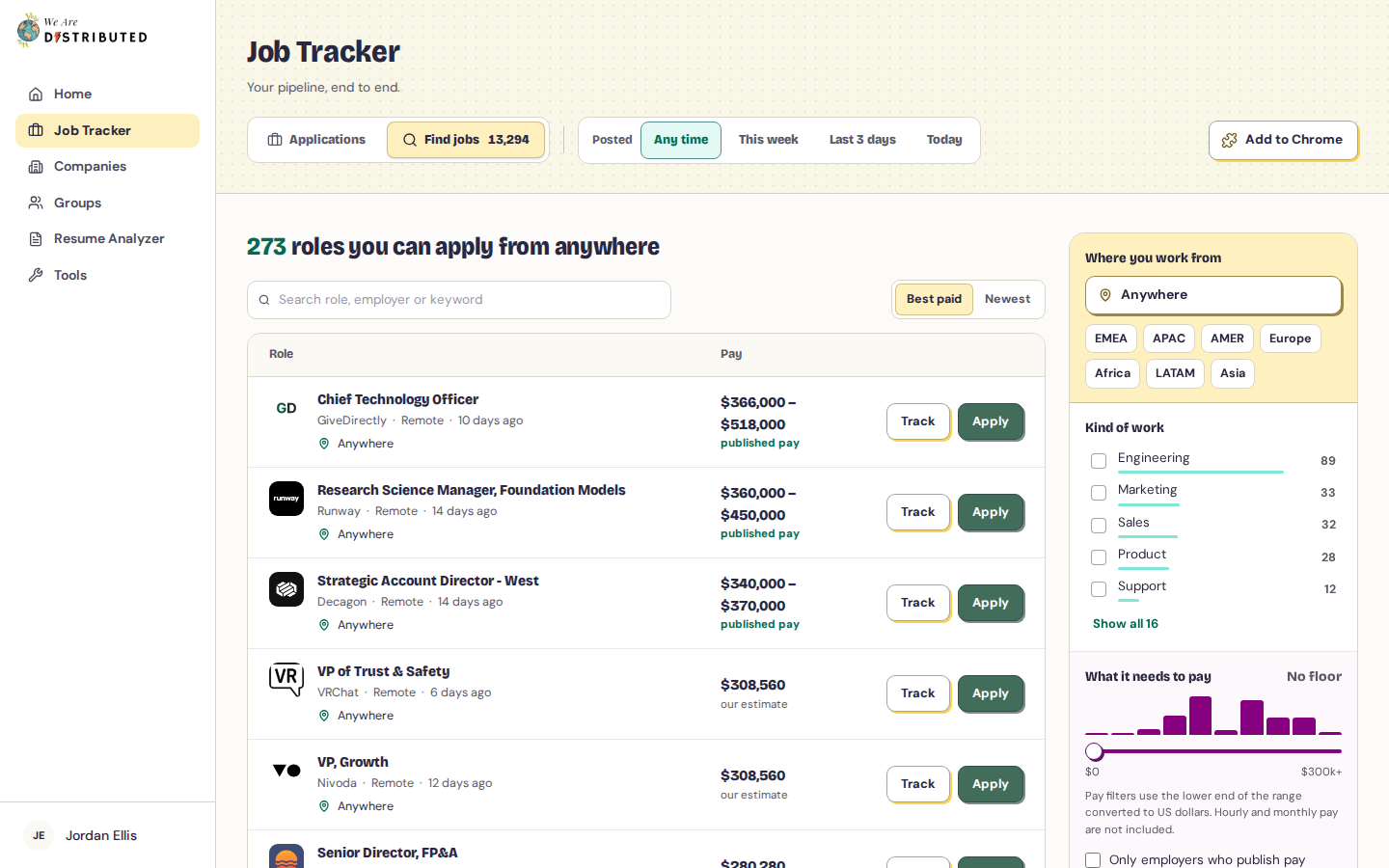
Open the Find jobs tab on the Job Tracker page to see open roles you can apply for from where you work. The heading shows how many there are for the place you've chosen.
- Under Where you work from, type a place or pick a region such as EMEA, APAC or LATAM. Each place shows how many roles are open to it. The list starts from the location on your profile, or shows jobs open to anywhere if your location doesn't match a place on the list.
- Narrow the list with Kind of work, What it needs to pay and Setup (Remote, Hybrid, Not stated or On-site). Use Posted at the top of the page to show only recent jobs.
- Tick Only employers who publish pay or Hide jobs I already track if you want, search by role, employer or keyword, and sort by Best paid or Newest.
- Click Track on a role to save it to your tracker (it then shows Tracked), or Apply to open the job.
Each role shows where the employer hires, the pay and when it was posted. Pay is marked published pay when the employer published it and our estimate otherwise. The pay filter uses the lower end of each range converted to US dollars and leaves out hourly and monthly pay.
Your filters are kept in the page address, so you can bookmark a search. Click Start over to clear them. Click a role's title to open its page on our job board.
Understand status labels
Each application sits in one of these status columns:
- Pending — Newly tracked job; not yet applied
- Applied — Marked as applied through the tracker
- Screening — You're in the screening stage
- Interviewing — You're interviewing for the role
- Offer — You've received or accepted an offer
- Closed — The application was rejected or withdrawn
Status updates automatically when you take actions in the Career Agent or the Job Tracker.
When you move an application out of Pending, its applied date is set to that day. Applications that reach Screening or later count towards your interview rate.
Share a tip as your application moves forward
When you move an application to Screening, Interviewing, Offer or Closed, on the board or in the application's details, the Job Tracker may ask what you learned, for example "You reached interviews at Acme. What did they ask?"
- Pick a writing starter, such as How to prepare, or write your own tip.
- Turn on Before you apply if your tip helps people who haven't applied yet.
- Click Pin it. Your tip goes on the company's board in Groups. Only your initials, job family and stage show.
Click Not now to skip. The prompt shows once per application and stage, and not if you've posted a tip in the last 30 days. Once your tip is up, the application's card shows Your tip is on the board; click it to open the board. Tips of 20 words or more can earn Career Pass points; see Use job search support groups.
Enable agent actions
The Career Agent can perform actions on your behalf when you ask. Enable these by interacting with job results:
- Track — Saves job to your tracker (sets status to pending)
- Apply — Marks a tracked job as applied
These actions generate feedback messages in the Career Agent chat, confirming each step. No additional setup required—the agent is ready when you are.
Troubleshoot real-time updates
If tracking fails, the Career Agent shows "Could not save [job] to your tracker" with the error.
Updates not appearing: Refresh the Job Tracker dashboard. The Career Agent chat stream may occasionally drop; starting a new message re-establishes the connection.
Connection errors: Ensure you're logged in and have an active Lite membership. Session timeouts require re-login.
Jobs not syncing: The tracker updates when you click Track or Apply. If a job doesn't appear after 10 seconds, refresh the tracker page.
Upload your resume to the Job Tracker for additional insights. See How to upload your resume to the job tracker.