
Open your profile
- In the dashboard, click Profile in the sidebar, or open the account menu and click View Profile.
- In the Job Tracker, open the account menu at the bottom of the sidebar and click View Profile. Your profile opens in the dashboard with a Back to Job Tracker link at the top.
- Settings in the dashboard sidebar opens the Account tab of your profile.
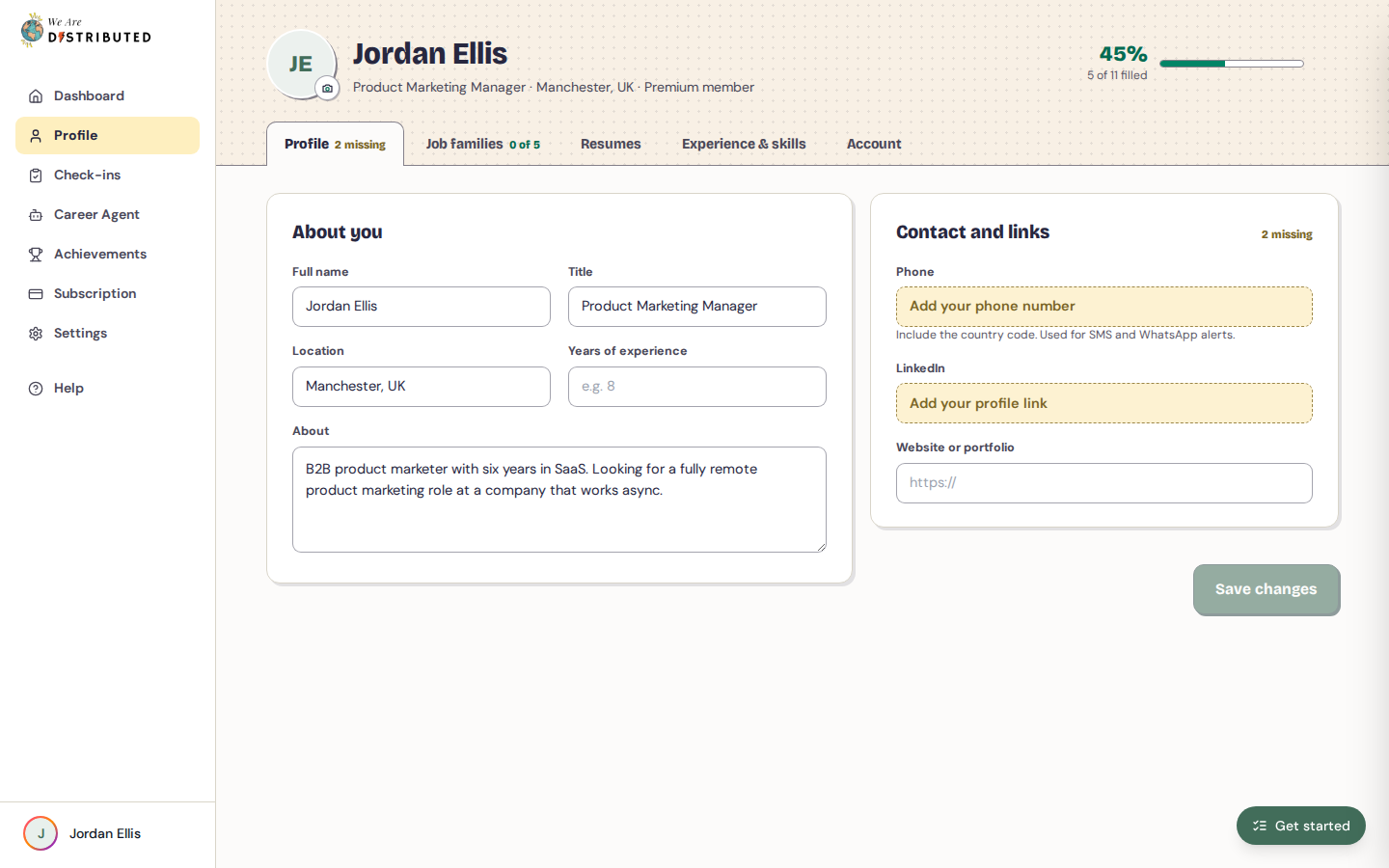
The top of the page shows your photo, name, title, location and plan, and how complete your profile is. Click the camera button on your photo, then Upload a new photo (JPG, PNG or GIF, up to 5 MB) or Remove photo.
Your profile has four tabs: Profile, Work experience, Stories and Account.
Update your details
- Open the Profile tab.
- Under About you, fill in your Full name, Preferred first name, Title, Location and About.
- Under Contact and links, add your Phone (with the country code), LinkedIn and Website or portfolio.
- Click Save changes. To undo your edits instead, click Discard changes.
To add more links, such as a case study or a talk, click Add a link under Work links, enter a label and an https:// link, and click Add. Each link saves straight away. Click Remove to take one off.
Career Agent uses your location to decide which jobs it suggests, so keep it up to date.
Add your application facts
Application facts, further down the Profile tab, keeps the answers job applications often ask for. A fact you haven't filled in shows Add; once it's filled in, it shows Edit.
- Click Add or Edit next to a fact.
- Fill it in and click Save. Click Cancel to leave it as it was.
The facts are:
- Time zone
- Work authorisation, and whether you need sponsorship
- Working in an office: Remote only, Hybrid (1 to 5 days a week) or Office, and whether you're open to relocating
- Notice period
- Salary expectation: an amount in GBP, USD, EUR, CAD or AUD, as Base salary or Total
- English: Native, Fluent, Professional or Conversational
Choose your job families
- Open the Profile tab.
- Under Job families, search for a family and add it. You can choose up to 5, and each shows how many open roles it has. Click × to remove one.
- Click Save changes.
Your families tune the Job Tracker's Find jobs board and New in your families, and your Career Agent match alerts.
Add your resumes
You need a Lite, Plus, Extra or Premium membership to keep resumes on your profile. Lite keeps 2 resumes; Plus and above keep as many as you like.
- Open the Work experience tab. Your resumes are at the top, under Resumes.
- Click Upload a resume, or drop a file onto the box below your resumes. You can upload a PDF or Word (.docx) file of up to 5 MB.
- If you have more than one resume, click Make primary on the one you want to use by default. Your Primary resume is the one the Resume Analyzer reads.
Your primary resume has Preview and Analyze in Job Tracker. Every resume has Download and Delete. Deleting a resume removes it from every We Are Distributed app. On Lite, once you've used both resumes, delete one to upload a replacement.
Add your experience and skills
- Open the Work experience tab.
- Under Roles, click Add a role, enter the Job title, Company, Start and End, then click Add role.
- Under Skills, type a skill and press Enter. Click × to remove one.
- Click Save changes.
Experience in numbers saves on its own. Click Edit, fill in your Years of experience, years in your job family, Years leading a team, People in the largest team you managed and Countries managed across, then click Save.
Write career stories and views
The Stories tab keeps your career stories in four parts, so you can answer any version of the question on a form or in an interview.
- Open the Stories tab and click Write a story.
- Give the story a short title. Under This story is, choose From work or Personal, then pick up to 3 Skills it shows.
- Write the four parts: Context, What you did, Bringing people along and Result. Under Result, fill in What you measured, Before, After and Over.
- Click Save story. To leave without saving, click Back to Stories.
Each of your first 8 complete stories earns 100 Career Pass points. A story is complete when every part has at least 15 words, and Before or After is filled in. The points land about three days after you save. If you delete the story before its points land, they're taken back.
To change a story, click its card. To remove it, open it and click Delete story.
Under Views, click Write a view to set down your point of view on your discipline, your industry or how the work should be done. Give it a Title and a Body, then click Save.
Manage your account
The Account tab is where you:
- change your email address or password (see Changing your email address and Login and password management);
- turn Weekly check-in reminders on or off;
- delete your account (see Delete your account).