
Sign in
- Go to app.wearedistributed.org/auth. The page is headed Welcome back.
- Enter your Email.
- In Password or login code, enter your password or your 26-character login code. You can paste the code with or without dashes.
- Click Sign in.
If you're signing in for the first time, you may see your login code displayed. Save it somewhere safe, such as a password manager.
New to We Are Distributed? Click Create an account, enter your Full name, Email and a Password of 8 or more characters, then click Create account.
Sign in to the Job Tracker or Resume Builder
The Job Tracker and Resume Builder have their own sign-in pages that use the same account:
- Click Continue to account to sign in through your We Are Distributed account, or
- Enter your Email and Password or login code under or sign in here, then click Sign in.
After you sign in to the Job Tracker, you land on your tracker.
Reset your password
If you've forgotten your password or lost your login code:
- On the sign-in page, click Forgot it? next to Password or login code.
- On Get back into your account, enter your email and click Send the link.
- Check your email for the link. It works for an hour; if it hasn't arrived in a minute, look in spam.
- Click the link. On Set a new password, enter a New password with 8 or more characters, type it again, and click Save password.
You can then sign in with your new password. The link works even if you usually sign in with a login code.
Change your password
You can update your password anytime from your account settings:
- Click Settings in the left sidebar. Your profile opens on the Account tab.
- Under Signing in, click Change next to Password
- In the Change password window, enter your current password, then your new password (at least 8 characters), and confirm it
- Click Save
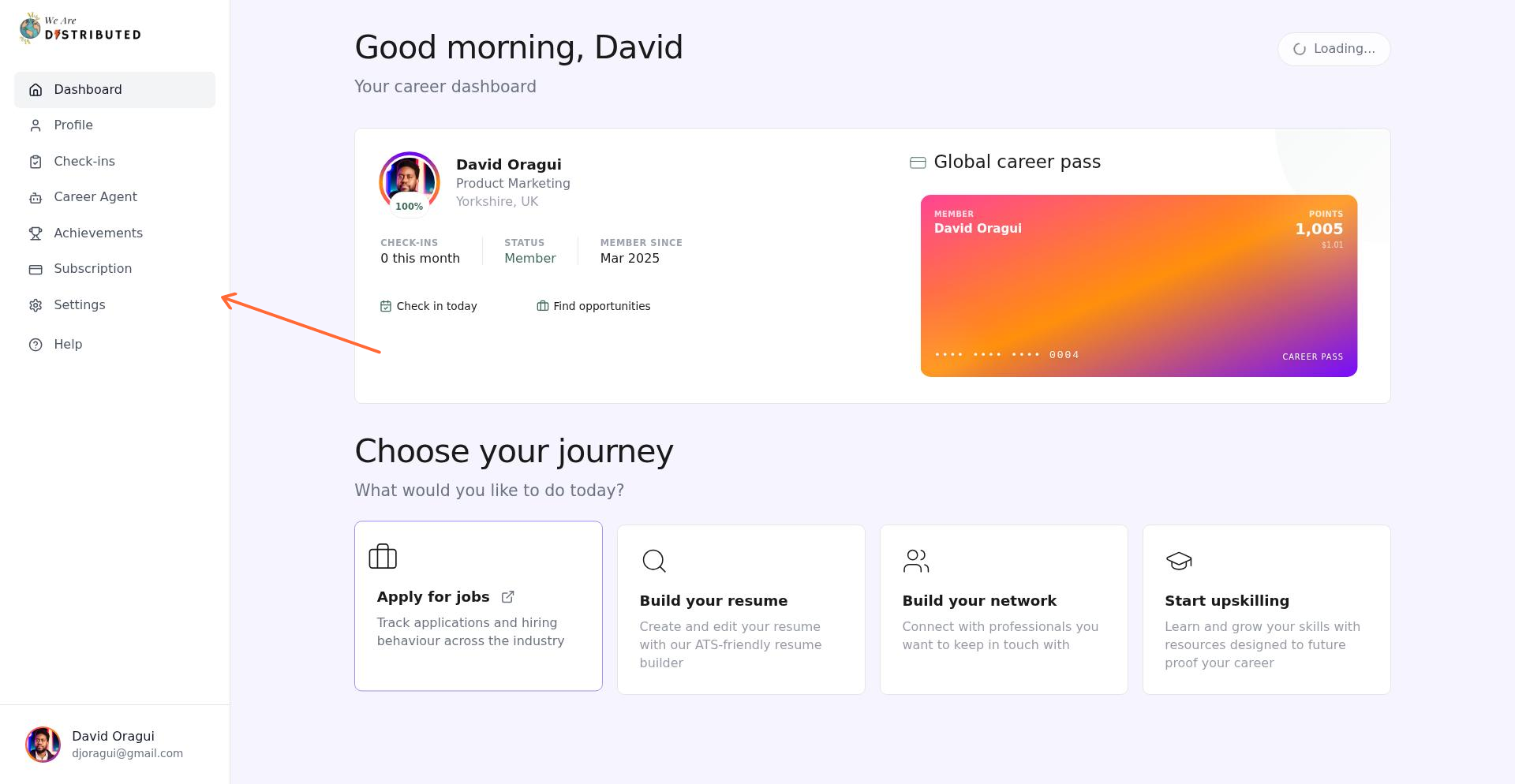
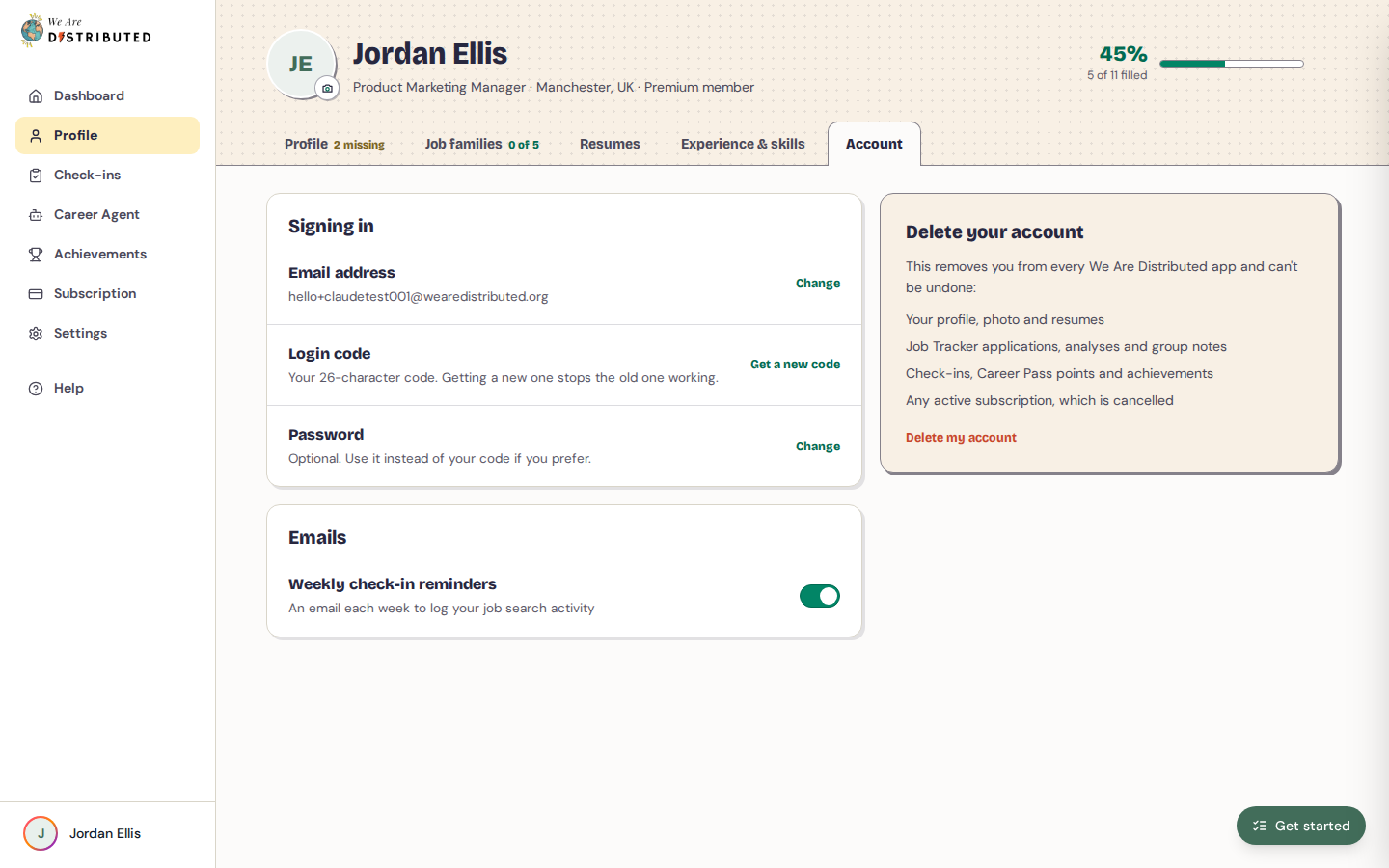
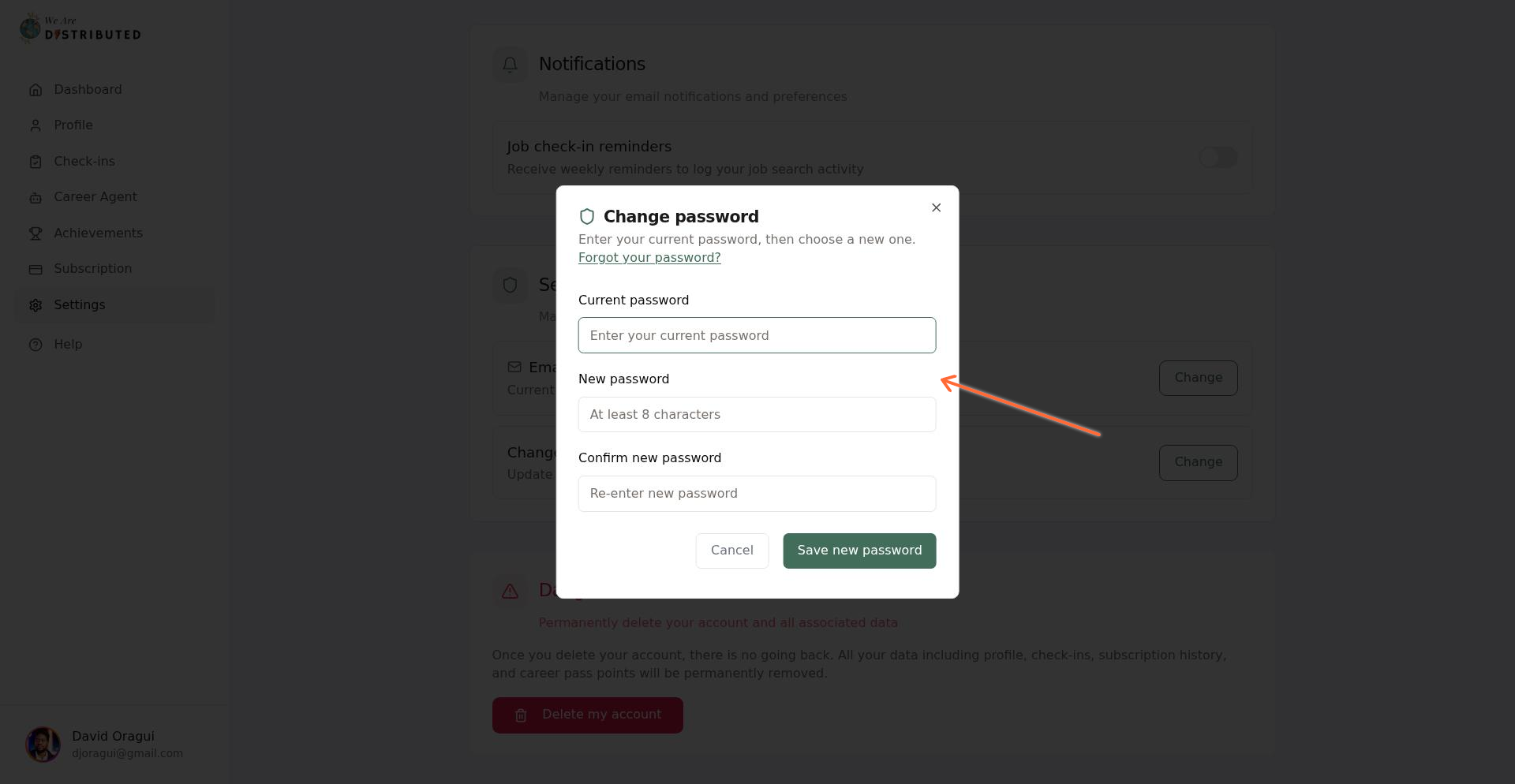
You'll see a confirmation message and the modal will close. Your new password is active immediately.
Password change security
When you change your password, the system verifies your identity and applies security protections.
Identity verification: You must enter your current password correctly to proceed. This prevents unauthorized changes if someone gains temporary access to your logged-in session. If you enter the wrong current password, you'll see an error message and the change will be blocked.
Troubleshooting password changes
If you signed in via a connected app or magic link in the past and haven't set a password yet, you'll see an error: "Current password is incorrect. If you signed in via a connected app or magic link, use 'Forgot password' to set a password first."
To fix this, click the Forgot your password? link in the change password modal. It opens the password reset page, where you enter your email to receive a reset link and set your first password. After that, you can change it normally from the Account tab of your profile.
Other common issues
- "The new passwords don't match." — Your new password and confirmation don't match; re-enter them carefully
- "Your new password needs at least 8 characters." — Choose a longer password that meets the minimum requirement
- "Current password is incorrect" — Double-check your current password for typos, or use the reset flow if you've forgotten it
Get a new login code
If you think someone else has your login code, or you've lost it, you can replace it while you're signed in:
- Open your profile and click the Account tab.
- Under Signing in, click Get a new code next to Login code.
- Click Get a new code to confirm.
- Under Your new login code, copy the code and save it somewhere safe, then click I've saved it.
Your old code stops working straight away.
Login troubleshooting
If you're having trouble signing in:
- "That isn't the password or login code for this email." Check your email, password or code for typos, or click Forgot it? to set a new password.
- "Too many attempts. Wait a minute, then try again." Wait a minute before you try again.
- "This link has expired or has already been used." Request a new reset link with Forgot it?.
Save your login code and password in a password manager or secure note app for easy access.