
How to change your email
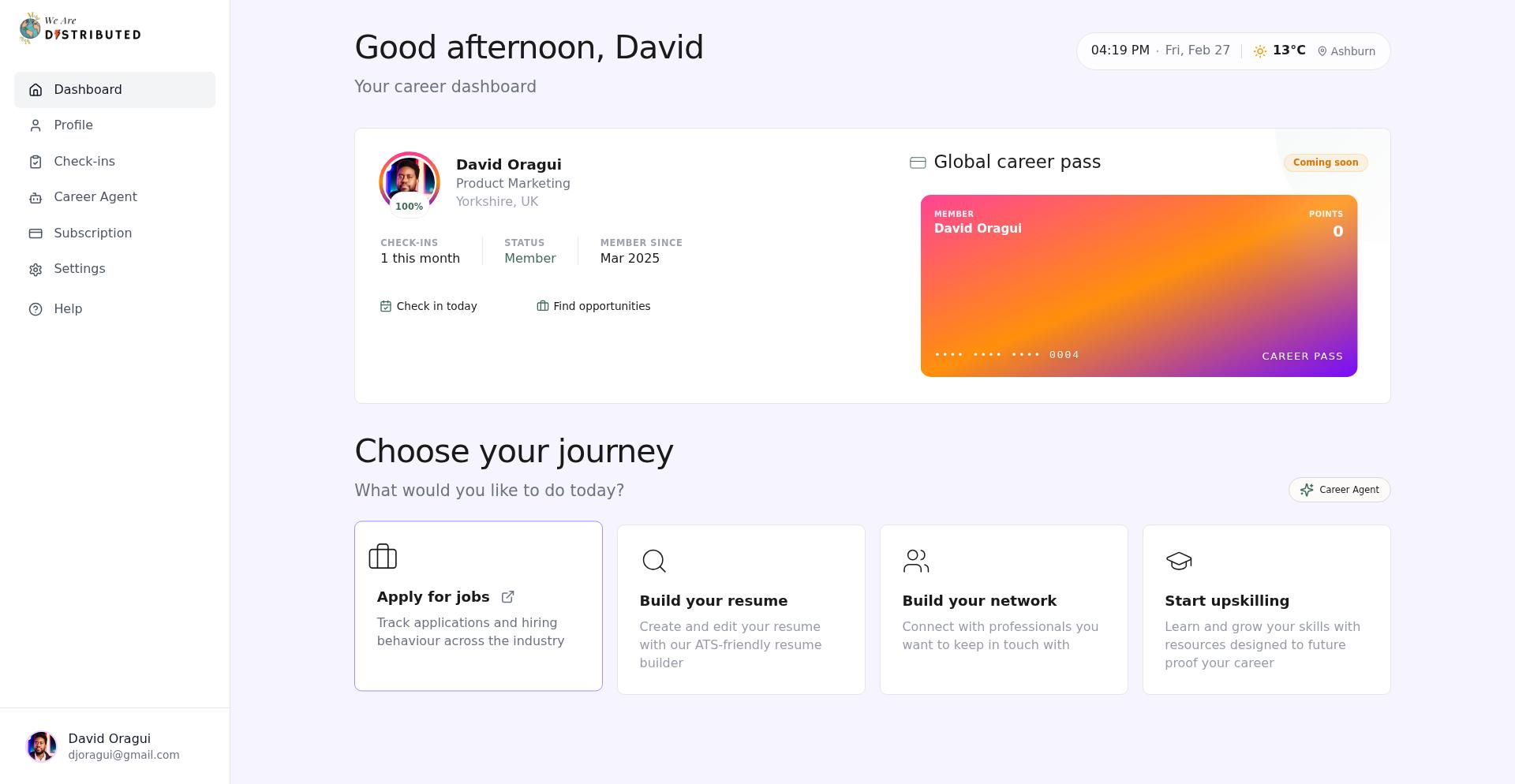
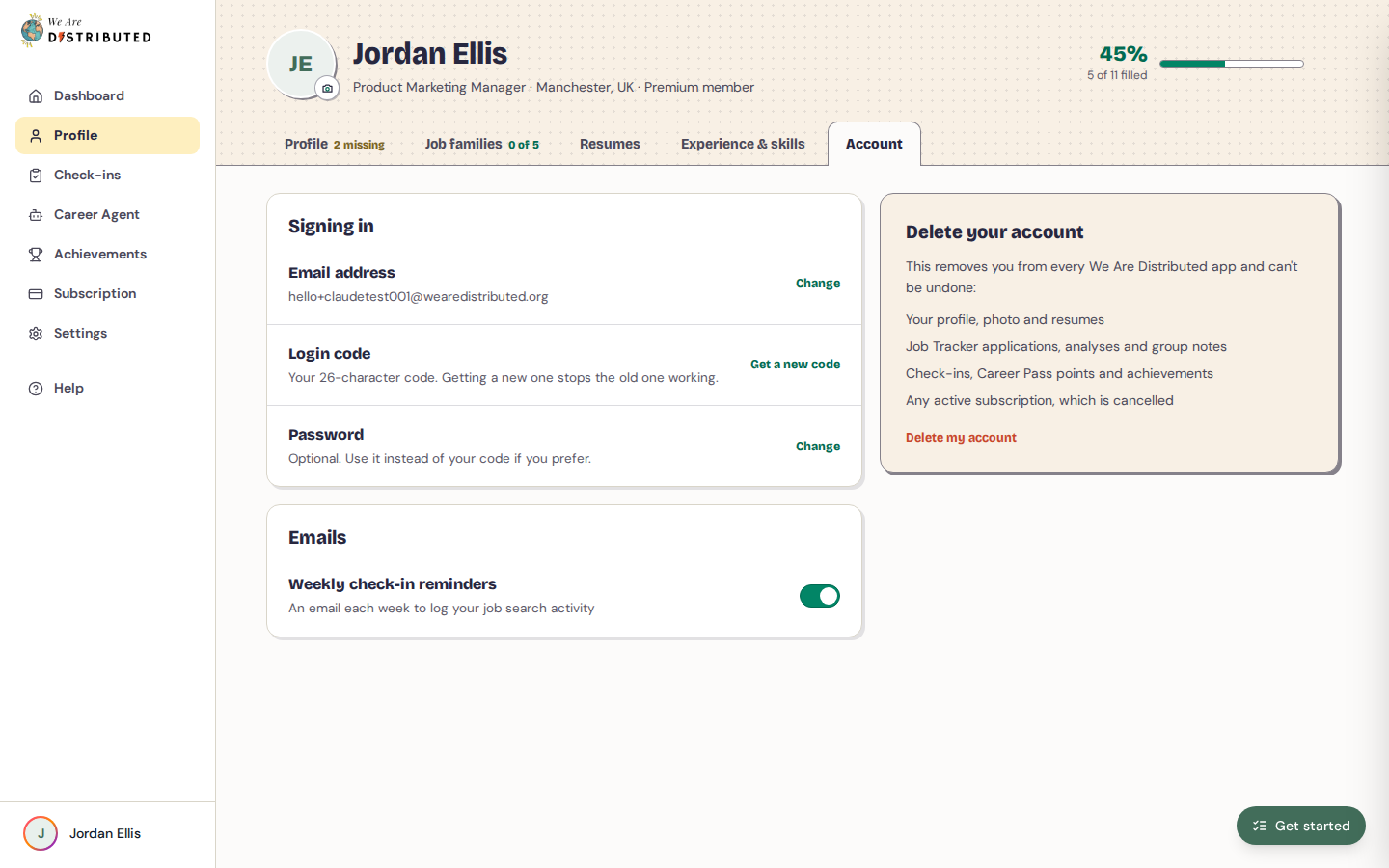
- Click Settings in the dashboard sidebar. Your profile opens on the Account tab.
- Under Signing in, click Change next to Email address.
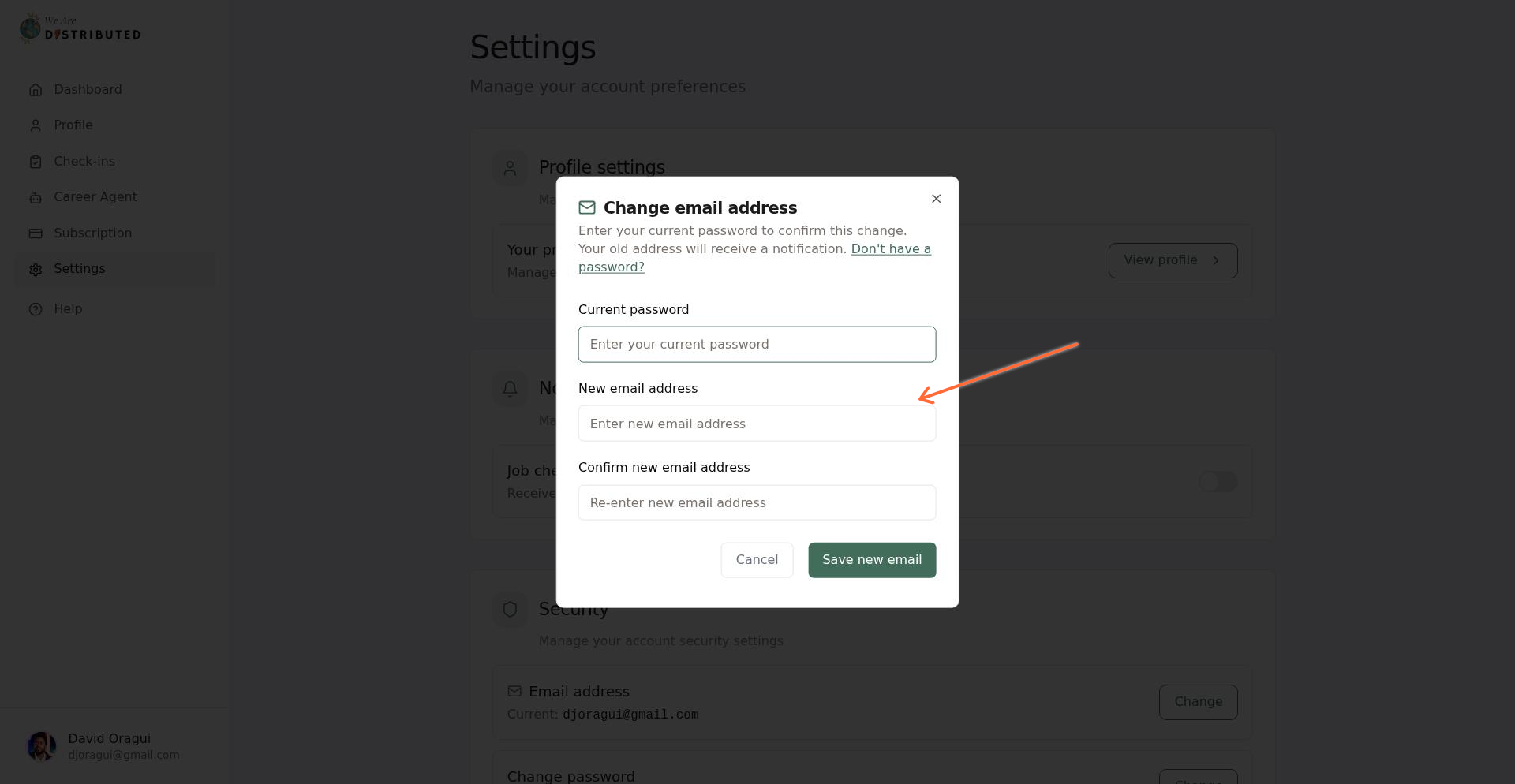
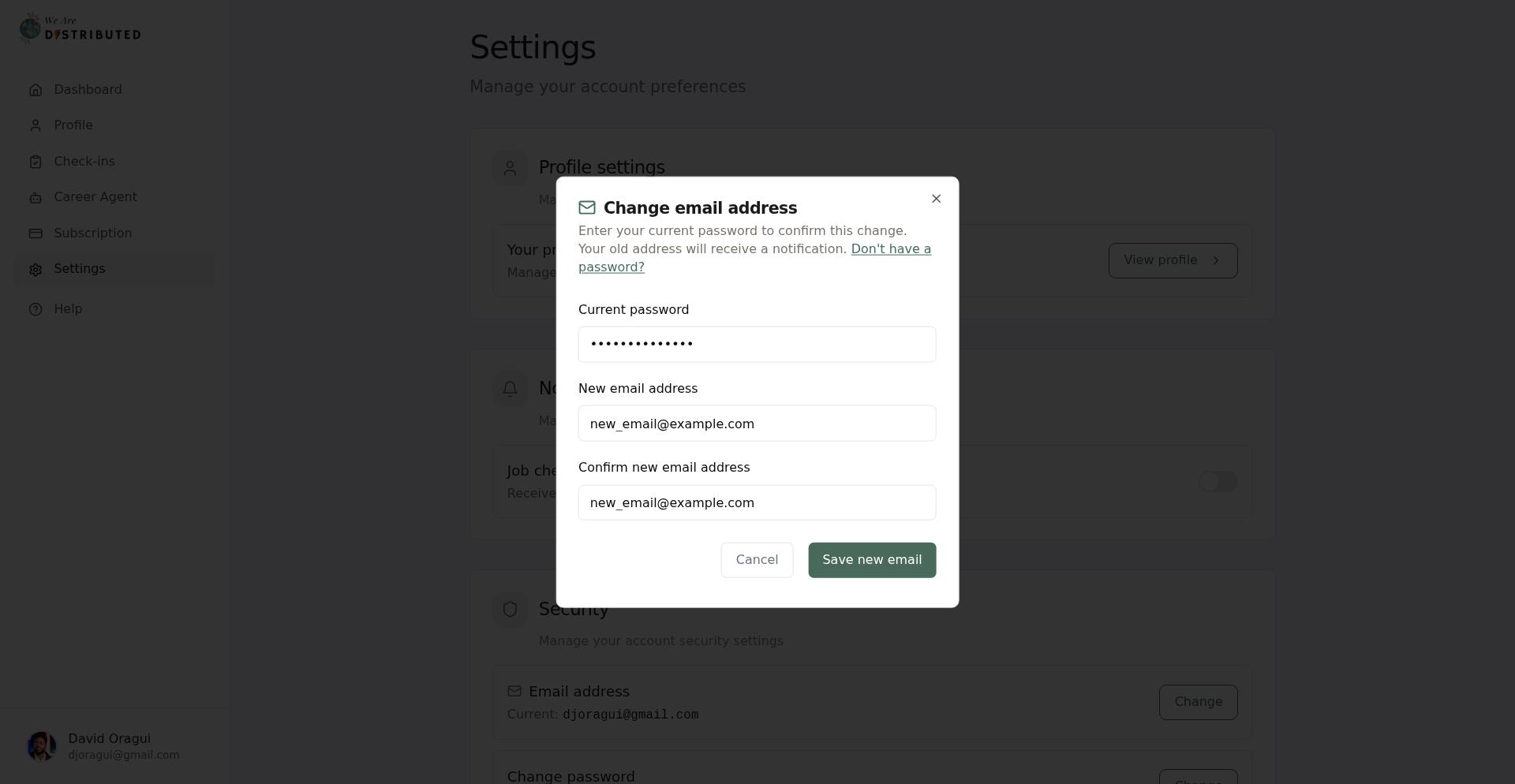
- In the Change email address window, enter your Current password, your New email address, and Confirm new email address.
- Click Save. You'll see a confirmation message when the change is complete.
What happens when you change your email
- Your account, profile, subscriptions, and data remain unchanged
- The system will attempt to send a confirmation email to your old address
- You'll use your new email to sign in going forward
- Your authentication session will refresh automatically
Common issues
Incorrect password error: Verify you're entering your current password correctly. Use "Forgot password?" if you need to reset it.
Email already in use: The email address you're trying to use is linked to another account. Use a different email or contact support if you believe this is an error.
Email addresses don't match: Make sure your new email and confirmation email are identical.
Was this guide helpful?