
What Career Agent does
Career Agent combines conversational AI with your career dashboard tools. You can:
- Ask for job recommendations matching your profile
- Automatically track promising opportunities
- Set up recurring job searches that run on a schedule
- Access your Job Tracker and Resume Builder in one place
- Organize career conversations into projects
Accessing Career Agent
From your dashboard, click the bot icon labeled "Career Agent" in the left sidebar. This opens the Career Agent interface at /agent.
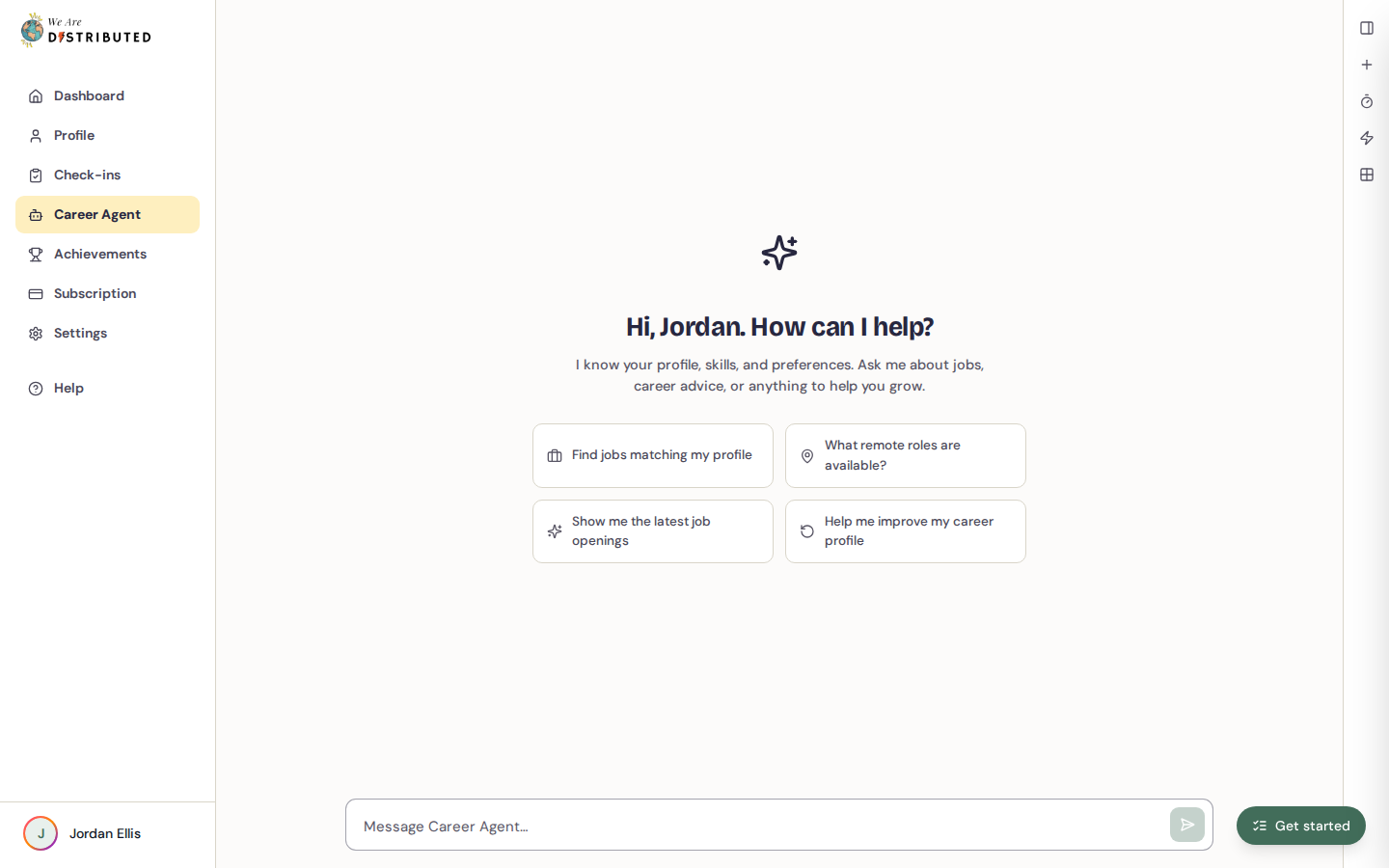
You'll see suggestion chips like "Find jobs matching my profile" to get started quickly—click any chip to send that prompt automatically.
Using the 'Find suitable jobs' recipe
The "Find suitable jobs" recipe is a pre-built workflow that searches for positions matching your profile and automatically tracks strong matches.
How it works:
- The recipe analyzes your skills, experience, and job title preferences
- It searches for jobs you can apply for from your location (see below)
- Strong matches are automatically added to your Job Tracker
- You receive a summary with a table of jobs showing each role and company, location, type and pay
Click Track on a row to save the job to your Job Tracker (it then shows Tracked), or click the link icon to open the full listing. Click View tracker below the table to open your Job Tracker.
Setting up automated workflows
With a Plus membership or higher, you can schedule the "Find suitable jobs" recipe to run automatically.
To create a workflow:
- In Career Agent, open the sidebar and click "Workflows"
- Click "Create a new workflow" or select the "Find suitable jobs weekly" button
- Give your workflow a name (e.g., "Weekly job search")
- Select "Find suitable jobs" from the Recipe dropdown
- Under Schedule, choose "Presets" for quick options like Weekly, or click "Custom" to build your own
To create a custom schedule:
- Click the "Custom" tab next to Presets
- Select which days to run by clicking day buttons: Mon, Tue, Wed, Thu, Fri, Sat, Sun (at least one required)
- Set your execution time using the hour dropdown (01-12), minute dropdown (00, 15, 30, 45), and AM/PM toggle
- Check the schedule summary below the builder to confirm (e.g., "Weekdays at 09:00 AM")
Toggle "Activate immediately" if you want the workflow to start right away, then click "Create" to save.
Your workflow will post chat notifications with summaries and job cards each time it runs. For example: "8 jobs in your results, 2 tracked to your job tracker." If nothing new matched, it says so and lists any candidates it didn't add.
Which jobs Career Agent suggests
Career Agent only suggests, tracks and sends you jobs you can apply for from where you are. It uses the Location on your profile, the wider regions it belongs to (for example, a country's region such as EMEA), and jobs open to anywhere. Jobs that don't say where they hire are left out.
If you haven't set a location, you'll only see jobs open to anywhere. If you click Track on a job outside your regions, it isn't added and Career Agent tells you why.
Job alerts from your sign-up search
If the job search you ran when you joined We Are Distributed found no matches, we set up a job alert for that search and email you matching jobs:
- Free: once a week, on Monday morning.
- Lite, Plus, Extra and Premium: every morning.
You only get an email when there are jobs to show. Each job shows its pay, marked Published or Recommended, and opens in the Job Tracker's Find jobs.
To stop the alert, click Unsubscribe from job alerts at the bottom of any alert email. If you upgrade to a paid plan, a paused alert starts again, unless you unsubscribed.
Open a past workflow run
On your dashboard, the Career Agent panel shows your latest runs. Click the number of jobs or one of the bars to open that run in Career Agent. You'll go to the chat message the run posted, or, if there isn't one, a Workflow run card with the jobs in its results.
Managing your workflows
The Workflows tab shows all your automated searches with their status (Active, Paused, or Error) and last run time.
Available controls:
- Run now: Trigger the workflow immediately
- Pause/Resume: Stop or restart scheduled runs
- Edit: Change the schedule or recipe settings
- Run history: See timestamps, results, and any errors from past runs. Click Clear history to remove past runs.
- Delete: Remove the workflow entirely
Workflows reduce manual searching and help you stay on top of new remote opportunities without checking the job board every day.
Switching between Chat and Workflow views
Career Agent's sidebar lets you switch between different views using the icon buttons at the top:
- Chat History (message icon): View your conversation threads and projects
- Workflows (timer icon): Access workflow management and scheduling
- Actions Library (zap icon): Browse available automation recipes (Plus and above)
- Apps (grid icon): Quick access to Job Tracker and Resume Builder. Career CRM is listed under In Development.
The active view highlights in green. Click any icon to switch views instantly.
When the sidebar is collapsed, click the Plus icon at the top to start a new chat. This automatically switches back to Chat view.
Reading workflow execution status
The Workflows panel shows each workflow's current state at a glance:
- Status: Active, paused, or error. In the compact list in the right sidebar, this shows as a coloured dot: green (active), gray (paused), or red (error)
- Schedule: Shows when the workflow runs (e.g., "Mon, Wed, Fri at 09:00 AM")
- Last run: Timestamp of the most recent execution
If a workflow fails, its status changes to error and the error message appears in the workflow history.
Viewing workflow run history
To see detailed logs of past workflow executions, click the Run history icon (circular arrow) on any workflow card.
The history panel shows:
- Execution timestamp
- Success or error status
- Result summary (e.g., "8 jobs in results, 2 tracked")
- Any error messages in red for troubleshooting
History helps you verify that workflows are running as expected and diagnose issues if results stop appearing.
Custom schedule builder
When creating or editing a workflow, the Custom schedule tab gives you full control over execution timing.
To build a custom schedule:
- Select one or more days by clicking the day buttons (Mon-Sun). Selected days highlight in green.
- Choose the hour (01-12) from the dropdown
- Choose the minute (00, 15, 30, or 45) from the dropdown
- Toggle AM or PM
The schedule summary updates in real time below the builder, showing exactly when your workflow will run.
Once you're satisfied with the schedule, toggle "Activate immediately" to start the workflow right away, or leave it off to activate manually later.
Using projects to organize conversations
Career Agent lets you create up to 5 projects on Lite (unlimited on Plus and above). Projects help you separate different job searches or career topics.
To create a project, use the sidebar to add a new project, name it, and move relevant conversations into it.
Plan requirements
- Free: Limited access to AI Career Agent (limited queries)
- Lite: Full chat access, up to 5 projects, recipes
- Plus and higher: Unlimited projects, automated career workflows, and the Actions Library
If you're on a free plan, you'll see an "Upgrade to Lite" banner when trying to access Career Agent.