
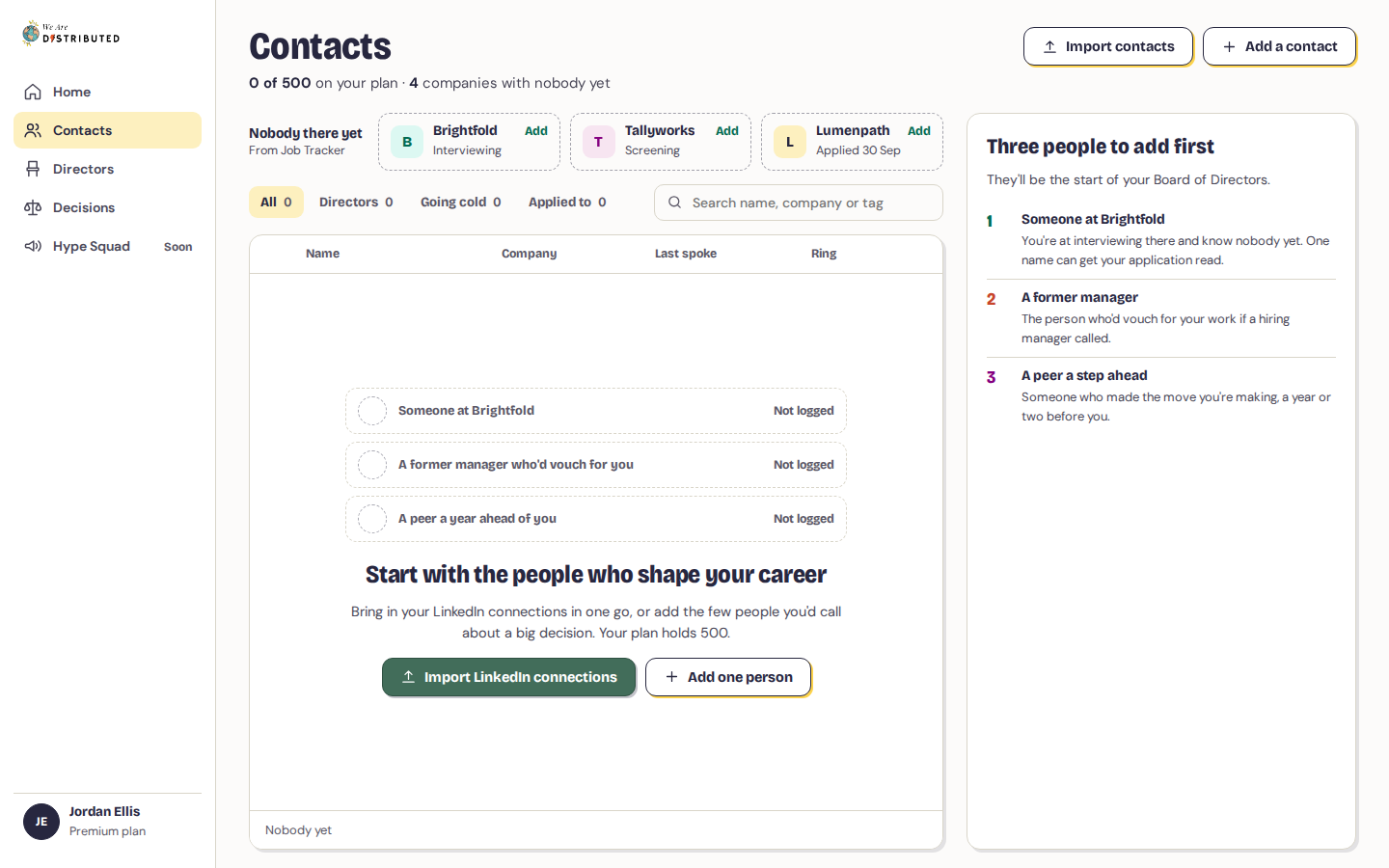
Contacts in Board of Directors is where you keep the people in your career: who they are, where they work, every conversation you've logged with them and what you'll do next. Only you can see your contacts.
Add a contact
- Click Add a contact at the top of Contacts or Home. On a phone, tap the + button.
- Enter their Name. Everything else is optional: Company, Role, Email, LinkedIn, How you met, a Next step with a date to do it by, and Tags (separate them with commas).
- Click Add followed by their first name.
You can't add two contacts with the same email or LinkedIn address.
Log a conversation
Each time you speak to someone, log it. It resets how warm they are and moves them back in on Home.
- Click a contact, then click Log an interaction (or Log a catch-up if you haven't spoken for over 30 days).
- Under What was it, choose Call, Meeting, Email, Message or Note.
- Set When it happened and add What you talked about if you like.
- Update the Next step and its date. Your next step shows on Home.
- Click Log it.
Everything you've logged shows in the contact's panel, newest first.
Find someone
The list shows each contact's company, when you last spoke and how warm they are. Anyone you haven't spoken to for over 30 days is Going cold.
- Use the tabs to show All, Going cold or Applied to (people at companies you've applied to in the Job Tracker).
- Type in Search name, company or tag to narrow the list.
- Click a person to open their panel: their company, your application there, email, LinkedIn, how you met, tags, next step and what you've logged.
With nobody selected, the panel shows who's Going cold and your Next steps due this week.
Companies from your Job Tracker
Board of Directors reads the jobs you track in the Job Tracker. Nobody there yet lists companies you've applied to or saved a role at where you don't know anyone. Click Add next to one to add someone who works there, with the company filled in. When you add someone at a company you've applied to, their panel shows Your application.
Edit or remove a contact
- Open the contact and click Edit.
- Change what you need and click Save.
To remove them, click Remove followed by their name in the edit sheet, then confirm. Their logged conversations go with them, and you can't undo this.
Import contacts
- Click Import contacts.
- Choose LinkedIn connections or A spreadsheet:
- LinkedIn connections: on the LinkedIn website, open Settings, then Data privacy, choose Get a copy of your data, then Connections. LinkedIn emails you a file, usually in about 10 minutes. Unzip it and use Connections.csv.
- A spreadsheet: a CSV with one person per row: a Name (or First Name and Last Name) column, plus Email, Company and Position if you have them.
- Click Choose a CSV file. You see how many people will be added and how many fit your plan.
- Click Import.
People already in your contacts are matched by email and left as they were. If the file holds more people than your plan has room for, we add your most recent LinkedIn connections first (or people in the order they're in a spreadsheet) and stop at your limit. After the import, Now you know someone at lists companies from your Job Tracker where you now have a contact.
Export your contacts
Click Export CSV under the list to download all your contacts as a CSV file.
How many contacts your plan holds
| Free | Lite | Plus | Extra | Premium |
|---|---|---|---|---|
| 5 | 20 | 50 | 150 | 500 |
The top of Contacts shows how many you have out of your plan's limit. When your plan is full, you'll see Your plan is full when you add someone: click Move to the next plan to upgrade, or make room by removing people you haven't logged a conversation with.