
Sign up
- Go to hire.wearedistributed.org and click Create an account.
- Enter Your name, Company, Work email and a Password of at least 10 characters.
- Click Create account and post a role.
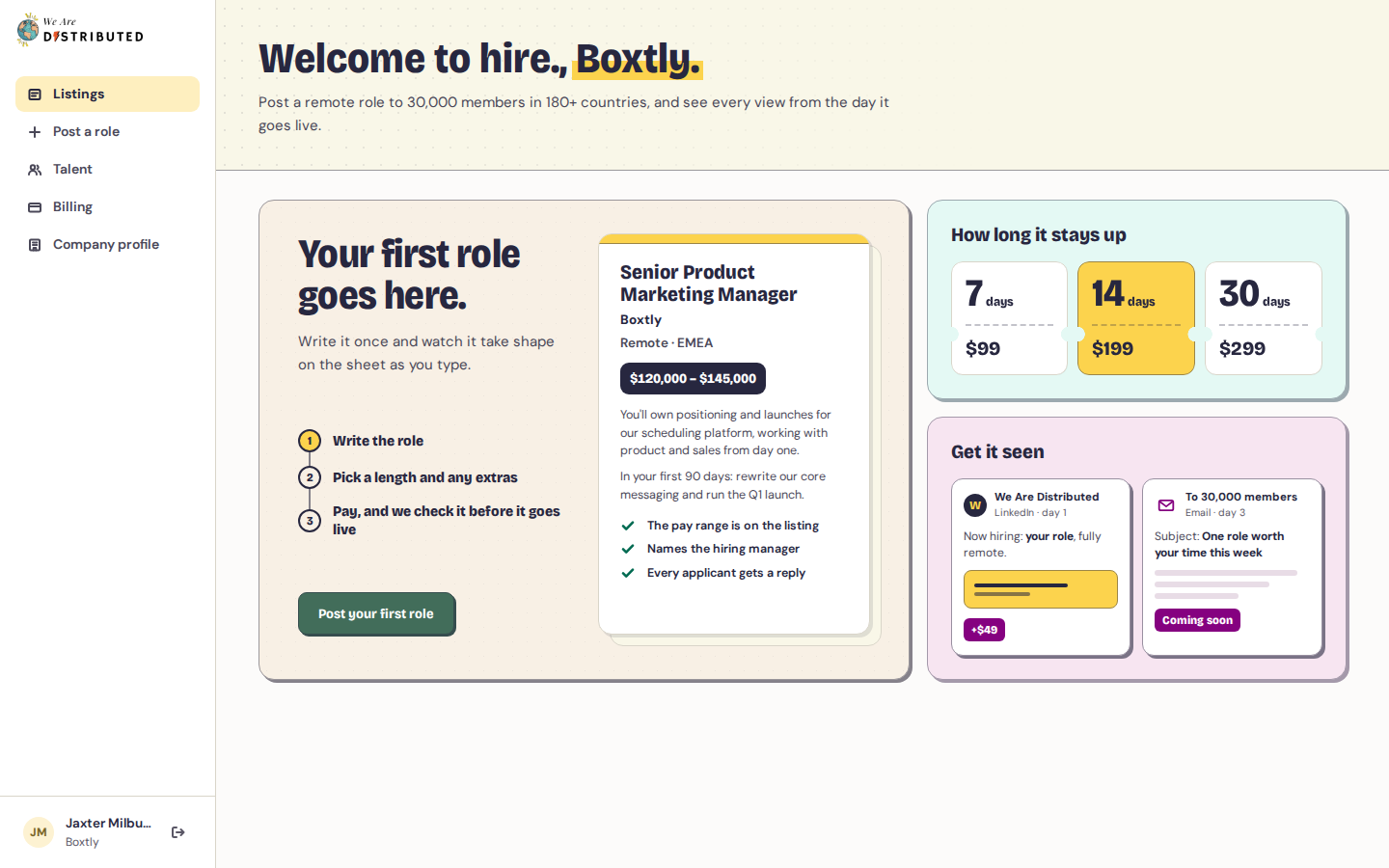
You land on Listings, where you can post your first role. See Post a remote role.
Sign in and out
- To sign in, enter your Work email and Password, then click Sign in.
- To sign out, click the sign-out button next to your name at the bottom of the sidebar. On a phone, open the menu at the top of the page first.
Reset your password
- On the sign-in page, click Forgot your password?
- Enter your Work email and click Send reset link. If there's an account for that email, we send you a link. It works once, for one hour.
- Open the link, type a new password of at least 10 characters in New password and Type it again, then click Save new password.
- Sign in with your new password.
If the link has expired or was already used, ask for a new one.
Find your way around
The sidebar has:
- Listings: every role you've posted, with how each one is doing. See Track how your listing performs.
- Post a role: write and pay for a new listing.
- Talent: read what product marketers posted this week and invite people to talk. Under You follow, the Email updates switch emails you when product marketers you follow post something worth sharing, at most once a week. Turn on When someone says yes to get a person's name and email by email when they accept your invite.
- Billing: your payments and receipts. See Billing and receipts for employers.
- Company profile: how your company shows up on the roles you post.
Fill in your company profile
Open Company profile to add your logo (PNG, JPEG, WebP or SVG, 1 MB or smaller), website, a one-line description, an about section, team size and careers page. The page also has sections for How you hire, Company health (optional) and Reviews (links to Glassdoor, Trustpilot and G2). Click Save changes when you're done.
We check new answers under How you hire before they count.
Was this guide helpful?