
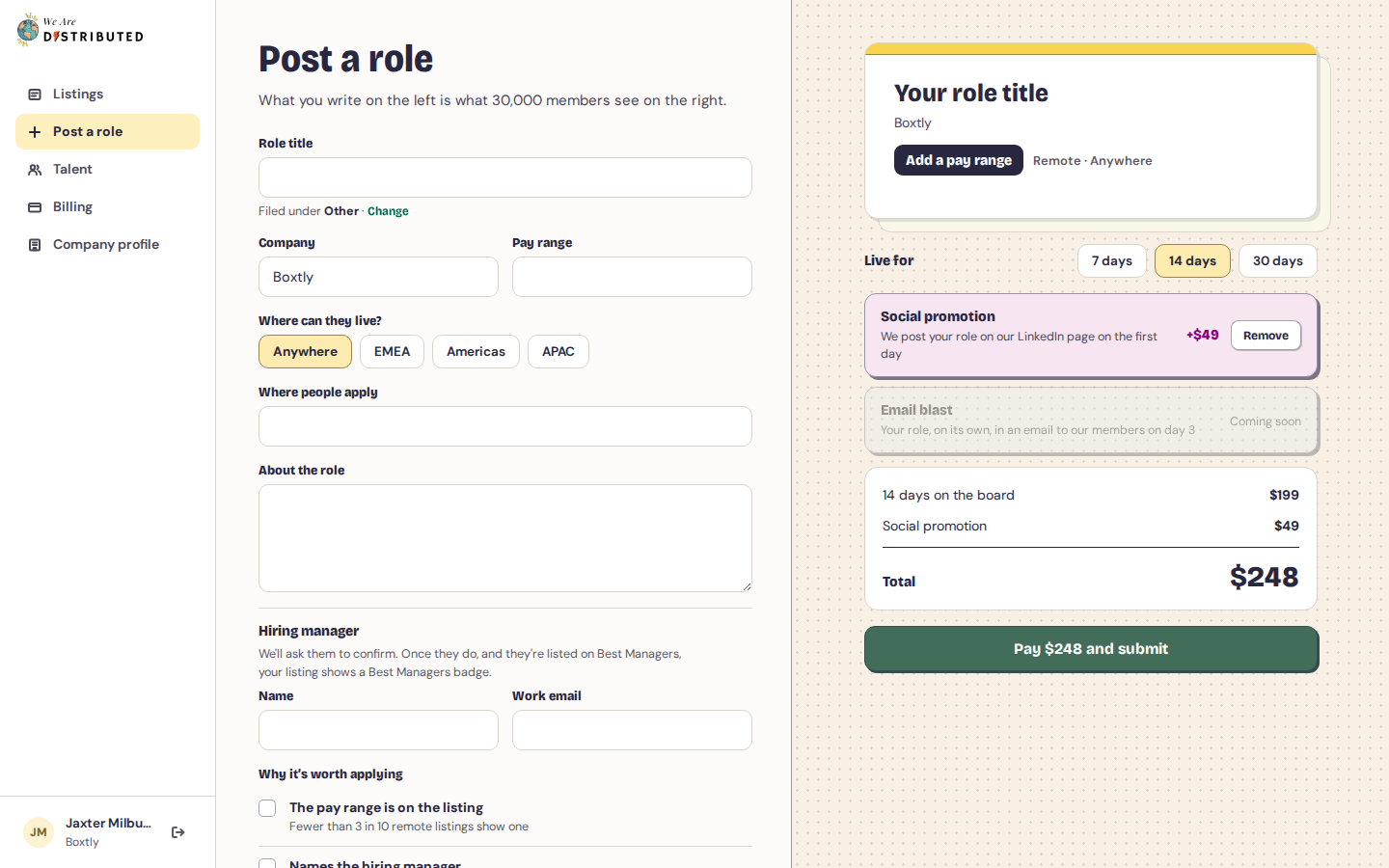
Write the role
- In the sidebar, click Post a role.
- Fill in the form (see the fields below).
- Choose a length and any extras, then pay (see the next sections).
The form has these fields:
- Role title. We file it under a job family based on the title. To pick a different one, click Change next to Filed under.
- Company, filled in from your account.
- Pay range (optional).
- Where can they live?: Anywhere, EMEA, Americas or APAC.
- Where people apply: the full link to your application page, starting with https://.
- About the role: the description.
- Why it's worth applying: tick any that are true, such as The pay range is on the listing or Every applicant gets a reply.
Title, company, application link and description are required before you can pay.
Your role is saved as a draft as you type. Once you have a paid role, unpaid drafts also show under Drafts on Listings: click Continue to pick one up again.
Choose a length and extras
Under Live for, choose how long the role stays on the board:
| Length | Price |
|---|---|
| 7 days | $99 |
| 14 days | $199 |
| 30 days | $299 |
14 days is picked for you.
Social promotion (+$49) means we post your role on our LinkedIn page on its first day live. It's added for you; click Remove if you don't want it. Email blast is coming soon.
The total shows under your choices.
Pay and submit
- Click Pay $… and submit. Checkout opens.
- Pay by card. If you leave checkout, your draft is still there.
- You come back to your listing. It shows Payment received. Confirming it now… for a few seconds, then Paid. We're checking your role now.
While your role is In review, the listing page shows your receipt and a link to Download the invoice. We email you the moment it's live. Your 7, 14 or 30 days start when it goes live.
If we don't approve a role, we refund your payment in full and the listing shows This role wasn't approved, and your payment has been refunded.
Change a role before it goes live
While it's In review, open the listing and click Edit listing. You can change the content, then click Save changes. The length and extras you paid for stay the same.
To cancel instead, click ••• and then Delete. Because the role hasn't gone live, we refund the full amount to your card. Refunds usually show within 5–10 days.