
Answers in the Job Tracker collects the written questions employers ask on real application forms for your job family, so you can write each answer once, save it, and copy it into any form.
Open Answers
- Click Answers in the Job Tracker sidebar. You can also click Answer it or Open Answers on the Your Answers card on Home.
- The page is headed Answers for your job family roles. If you've chosen more than one job family on your profile, click the family name to switch. With no job family, it shows Answers for any role.
- Under the heading you'll see how many topics you've answered and how many are ready to reuse.
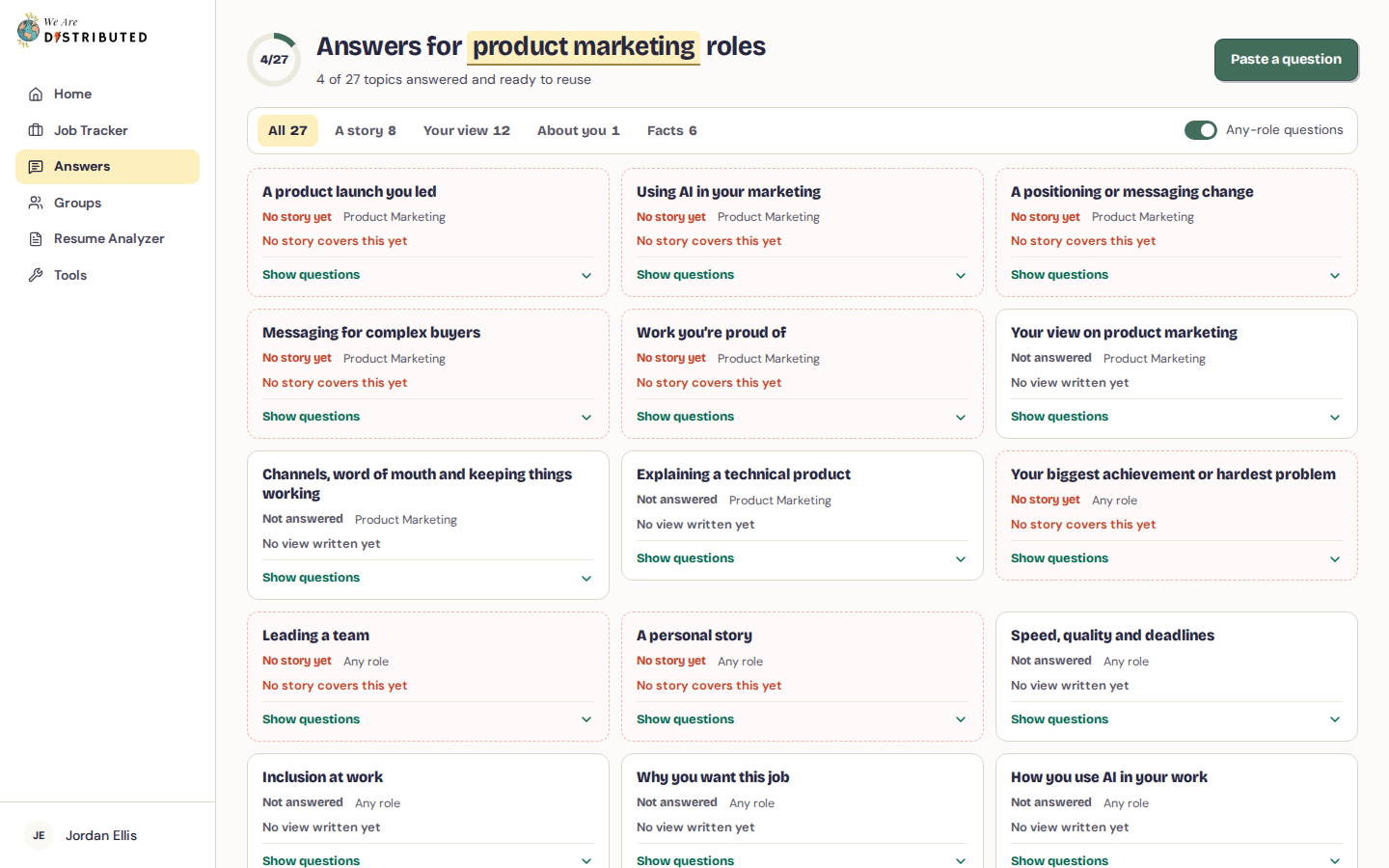
Questions are grouped into topics. Use the tabs to show only one kind: A story, Your view, About you or Facts, or All. Turn Any-role questions off to see only the questions for your job family.
Each topic shows whether you've answered it. Click Show questions to see the different ways employers word it, then Answer or Open on a question.
Answer a question
- Open a question. The panel next to it shows what you can draw on:
- A story: What this question asks for shows which parts of a story the question wants (Context, What you did, Bringing people along, Result) and your matching stories from your profile. Pick one under Your story. If none fits yet, click Write this story: your profile opens with the question shown above the story editor, and saving the story brings you back.
- Your view: From your views shows the views you've written on your profile. If you have none, your answer here is saved as one.
- About you: From your profile shows your About text and skills, with Edit on your profile.
- Facts: From your Application facts shows facts such as your location, notice period and links, with Edit facts.
- Write your answer under Your answer. The word count updates as you type, and What makes a good answer gives tips.
- Click Save answer. Click Copy answer to copy it into an application form.
One answer covers a topic. When you answer one wording of a story, view or About you question, the other ways employers ask it show Covered by your answer, and opening one starts from the answer you already wrote, so you only change it if that wording asks for more. Click Put that answer back to return to your saved answer. Fact questions are counted one by one.
To remove a saved answer, clear the box and click Save answer.
Paste a question from a form
If an application asks something you haven't seen in Answers, add it:
- On the Answers page, click Paste a question.
- Paste the question exactly as the form words it, choose the Job family, and add the Job it came from (the link to the job ad).
- Click Find it in the bank.
- Already in the bank: click Answer it (or Open your answer if you've answered it).
- Close to a group in the bank: it's saved for you in that group. Click Answer it now, Share with the bank, or It's a different question.
- New to the bank: it's saved where only you can see it. Choose what it asks for and a Group (or Start a new group), then click Answer it now or Share with the bank.
Company names are taken out of a pasted question before it's matched. To share a question with other members, you need to add the job it came from, so it can be checked against the real form. If it passes the checks it joins the bank; if not, it stays saved for you. You can paste up to 30 new questions a day.
What each plan includes
- Free: you can open the first question in each topic, plus any question you've already answered, any filled from your facts, and the questions you paste. Other questions show Members only with Unlock. You can save up to 5 answers; the page shows how many you've used, with See membership.
- Lite, Plus, Extra and Premium: every question is open and you can save as many answers as you like.
See Guide to subscription tiers and limits for everything each plan includes.